What Alexa Hunches Can Actually Automate
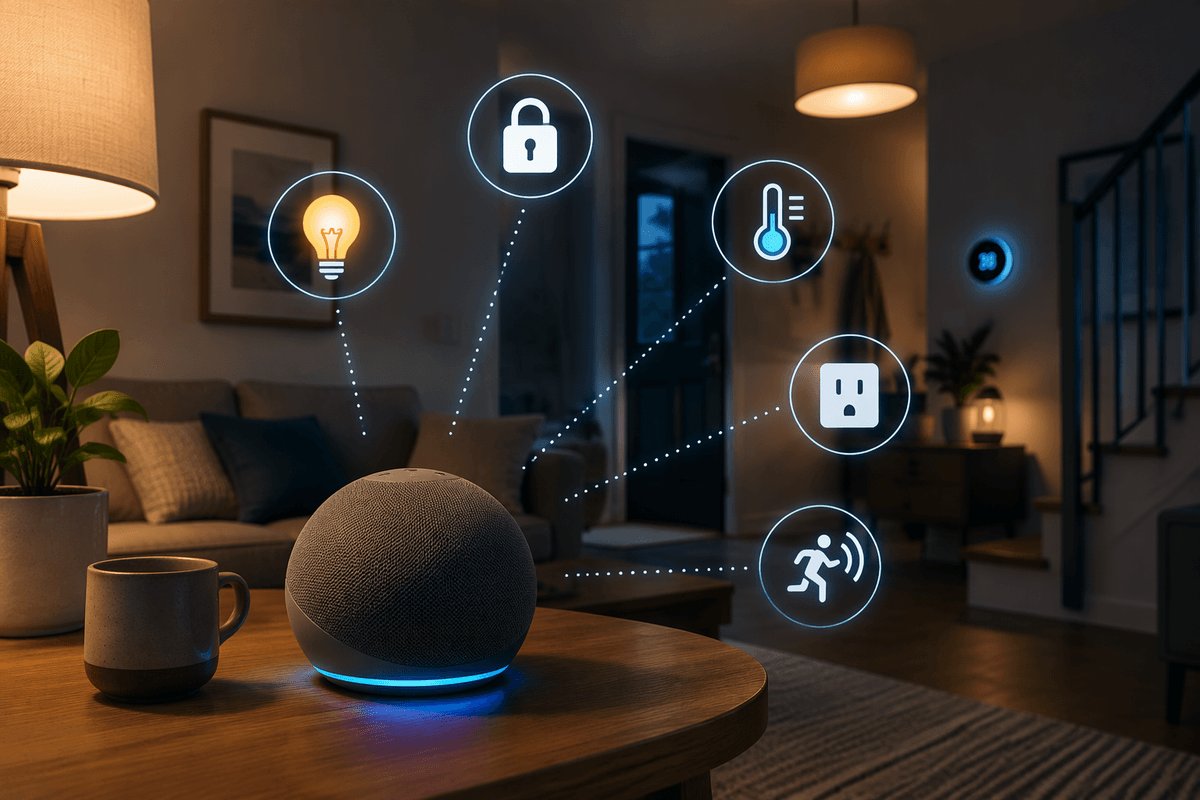
Alexa Hunches are best understood as pattern-based suggestions or automatic actions for common oversights. For example, Alexa may notice that lights are still on when the household appears asleep, remind you about an unlocked door, or turn compatible lights, plugs, switches, or thermostats off when you seem to be away. The feature depends on supported devices and the activity signals Alexa can detect, so it does not replace every routine or sensor.
That distinction matters before you enable it. Hunches work well for low-risk tasks such as switching off lights or adjusting temperature, but they are less suitable for actions involving security, appliances, pets, or anything that could cause damage if Alexa guesses incorrectly. Fixed schedules and manual routines remain better when timing and behavior must be predictable.
Check Compatibility Before Turning Hunches On
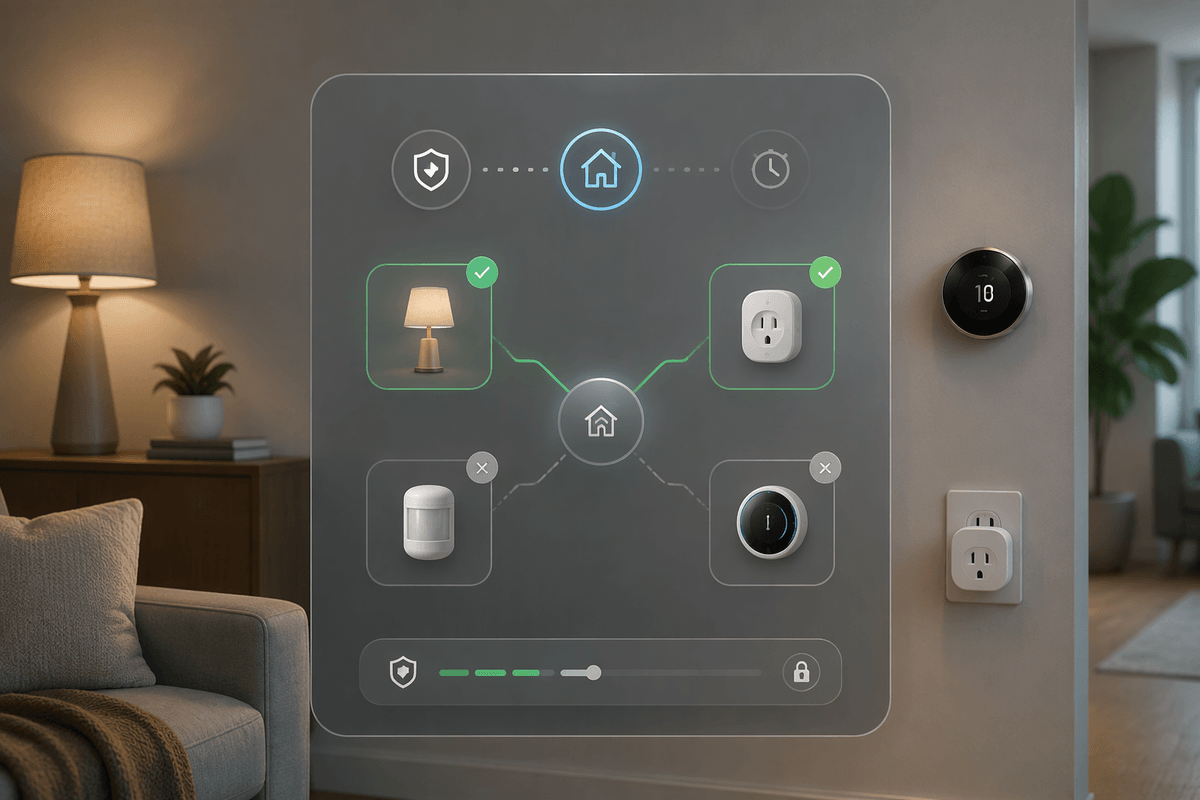
Before enabling Hunches, check that the devices you want to control appear in the Alexa app and respond reliably to ordinary voice commands. Hunches generally depend on compatible lights, plugs, switches, locks, thermostats, and sensors, but support can vary by brand, model, region, and device connection. A smart plug may work for a lamp yet be a poor choice for a heater or coffee maker if cutting power creates a safety problem.
Open the Alexa app, review the Hunches settings, and confirm which suggested actions are available for your home. You may be able to allow automatic actions, require approval before Alexa acts, or disable individual device controls. Start with one or two low-risk devices rather than enabling every suggestion at once. If a device frequently goes offline, shares a name with another device, or depends on a fragile bridge or hub, leave it out until the underlying connection is stable. Hunches cannot compensate for unreliable hardware, unclear device names, or missing presence information.
Choose the Household Patterns Alexa Should Notice
Start with patterns that are easy to recognize and have a low cost if Alexa gets them wrong. A useful example is a living-room light that remains on after everyone has gone to bed, or a hallway light that stays on after the household leaves. You might also allow Hunches to adjust a thermostat when the home is empty, provided the change will not affect pets, medical equipment, or temperature-sensitive items. These actions solve small oversights without changing how the household normally operates.
Be more selective with patterns involving locks, doors, appliances, or rooms used by different people. Alexa may interpret quiet activity as an empty home, mistake an unusual schedule for a normal one, or respond to incomplete device information. If several household members keep different hours, avoid automations based on assumptions such as “everyone is asleep.” Review each proposed action and ask what happens if it triggers late, fails to trigger, or repeats unexpectedly. Leave unusual situations to a manual command or a fixed routine until you have observed the pattern long enough to know that Alexa’s suggestion matches real household behavior.
Turn Recommendations Into Automatic Actions
Once you have chosen a low-risk pattern, open the Alexa app and review the Hunches available for that situation. A recommendation may appear as a notification asking whether Alexa should take an action, or it may offer an option to perform that action automatically in the future. Use approval mode first. This lets you see when Alexa detects the pattern and confirm that the suggested response makes sense before removing the manual step.
When the recommendations are consistently accurate, enable automatic action for one device at a time. Choose a clear target, such as turning off a lamp or adjusting a thermostat, and check that the device has a distinct name and remains connected. Avoid combining several uncertain actions into one setup, because it becomes harder to identify which assumption caused a problem. If Alexa repeatedly suggests an action at the wrong time, switch it back to approval mode or disable that Hunch rather than working around it with extra routines.
Keep fixed routines for events that need exact timing, such as morning lights or bedtime reminders. Hunches are most useful when they handle small, unplanned oversights.
Balance Convenience With Privacy and Accuracy
Convenience is easier to accept when you know what Alexa is using to make a decision. Hunches may rely on device status, activity patterns, location or presence signals, and your responses to earlier suggestions. Review the Alexa app’s privacy and smart-home settings so you understand which features are enabled, and remove access for devices or services you no longer use. If household members have different schedules, explain that an automatic action may reflect a pattern rather than a confirmed fact.
Accuracy also depends on consistent conditions. A phone left at home, a guest using the lights, or a sensor that loses its connection can make the household appear occupied or empty at the wrong time. Keep automatic actions limited to changes that are easy to reverse and unlikely to create harm. Turning off a lamp is usually acceptable; unlocking a door, switching off a freezer, or controlling a space heater deserves much more caution. If a Hunch misfires, return it to approval mode, inspect the device and presence settings, and observe the pattern before enabling it again.
Troubleshoot Hunches That Do Not Work Well
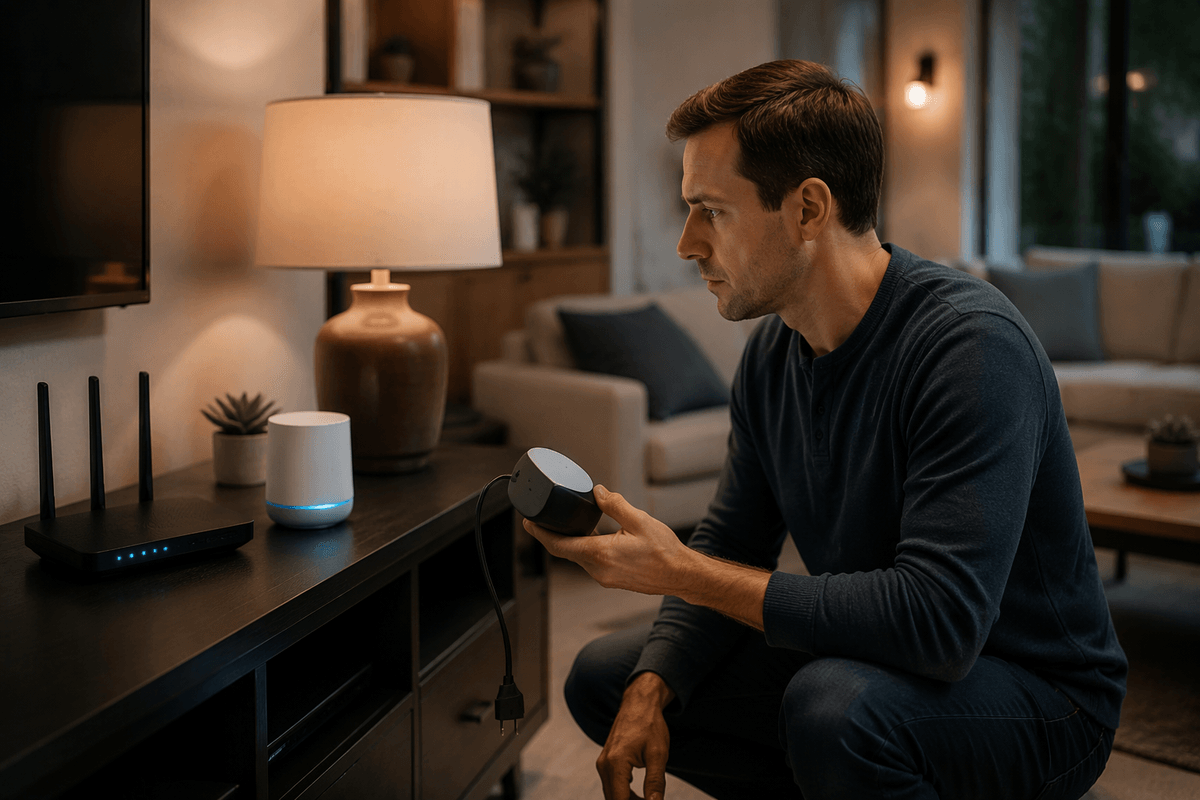
When a Hunch fires at the wrong time, first identify whether the problem is detection, device control, or timing. Check the Alexa app’s activity and Hunch settings, then confirm that the relevant phone, sensor, lock, or smart-home device reported the status you expected. A phone left at home can make Alexa think someone is present, while a disconnected motion sensor can make an occupied room look quiet. Also check device names and groups for overlap, especially if similar lights or plugs appear in more than one setup.
If Alexa detects the situation correctly but the action fails, test the device with a voice command and inspect its Wi-Fi, hub, or manufacturer connection. Reconnect or remove unreliable devices before changing the Hunch itself. For repeated false triggers, use approval mode, narrow the automation to one device, or disable it temporarily and watch the pattern for several days. Some problems cannot be fixed through Hunches alone: households with irregular schedules, multiple residents, or weak presence signals may get more dependable results from a scheduled routine, a dedicated sensor, or a manual command.
Build a Small, Reliable Alexa Automation System
A dependable Alexa setup usually begins with a small group of low-risk actions rather than a complete household redesign. Keep Hunches for occasional oversights, such as switching off a lamp, and use fixed routines for predictable events, such as waking up or leaving for work. Give each device a clear name, remove equipment that frequently disconnects, and review automatic actions periodically as schedules and household needs change.
Treat approval mode as a testing stage, not a failure. Let Alexa prove that it recognizes the right pattern before granting permission to act without confirmation. If an automation remains unreliable after checking devices, presence signals, and timing, replace it with a routine, sensor, or manual command. The most useful system is not the one that automates the most tasks; it is the one that quietly handles repetitive, reversible chores without creating new problems.