Why Forest May Miss Focus Minutes
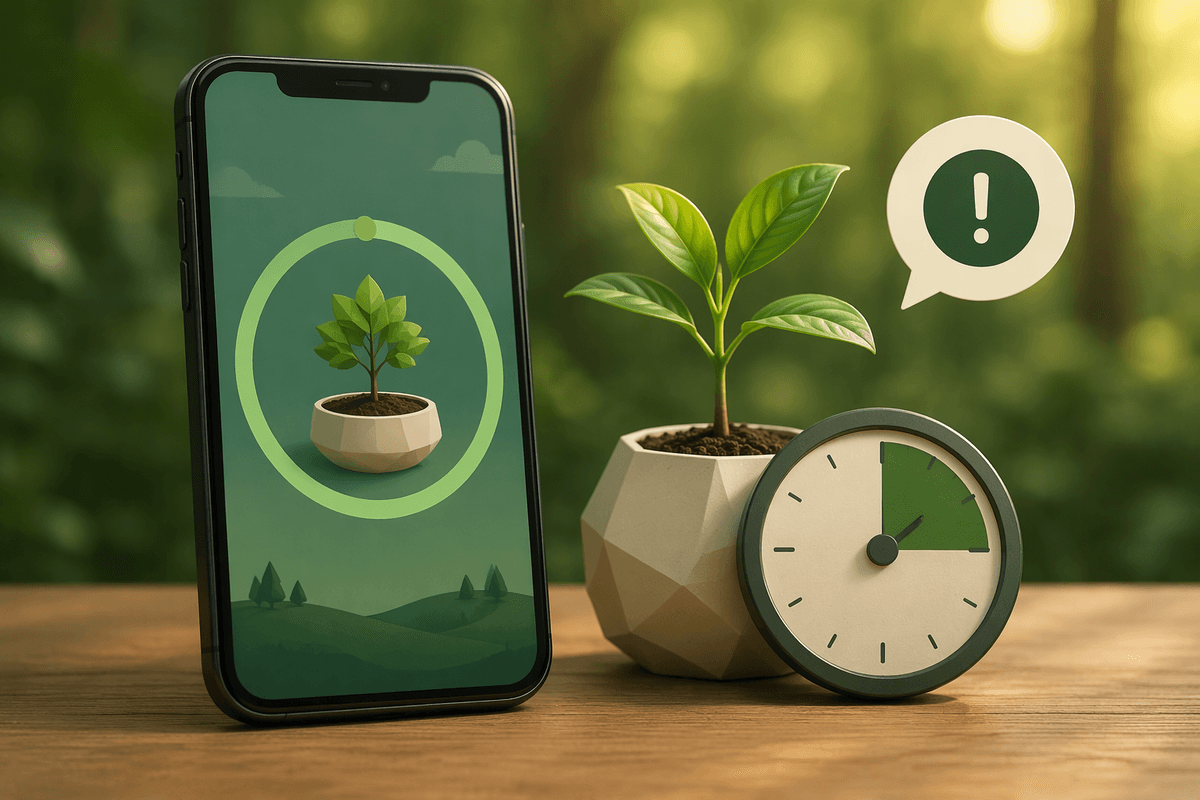
When Forest shows fewer focus minutes than expected, the timer may not have completed normally. A session can be affected if you stop it early, switch to another app, lock the phone, restart the device, or let the app close in the background. Battery-saving features and restricted permissions can also interrupt tracking without making the problem obvious.
Missing time can also come from a difference between the timer screen and Forest’s statistics, especially when data has not synced or the device date and account do not match. Start by checking whether the session finished, then review permissions and battery settings before assuming the recorded minutes are permanently lost.
Check Whether the Session Actually Finished
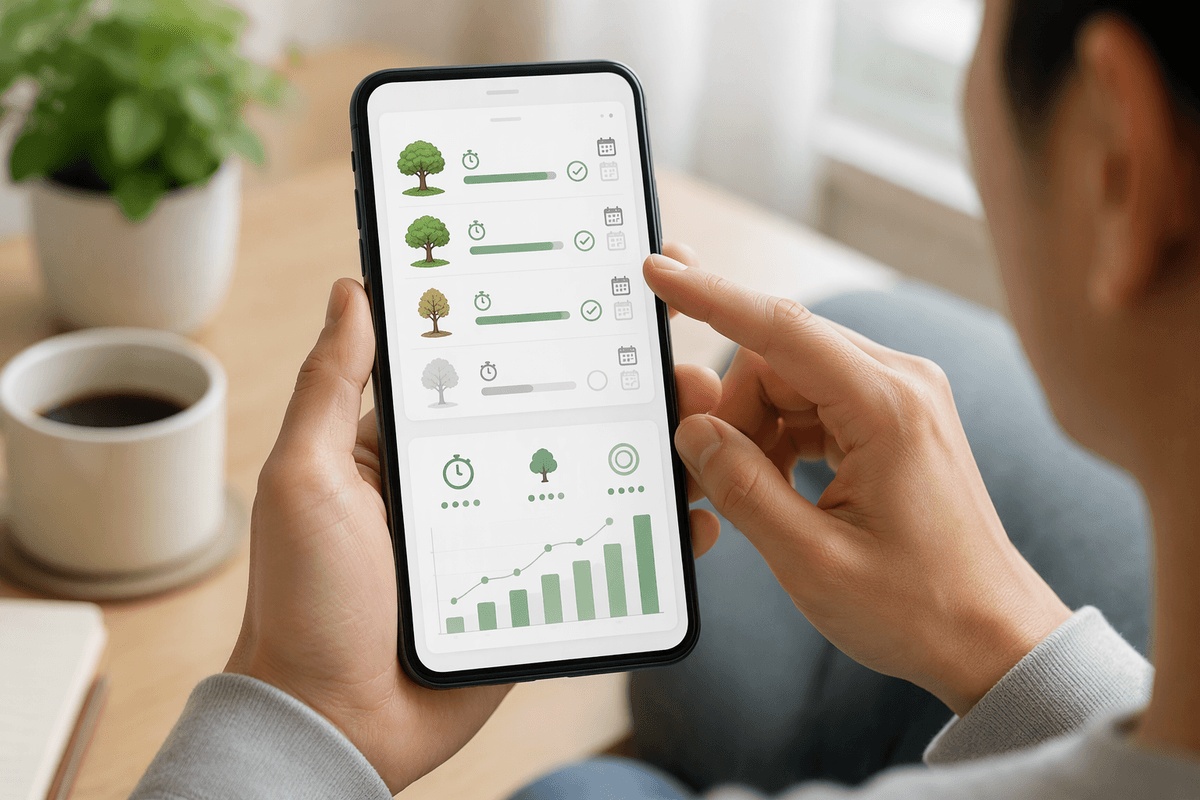
Open Forest and check the session history before changing any settings. A timer that reached zero should normally appear as a completed session, while a session stopped early may be recorded only for the minutes that elapsed. If you planted a tree but later force-closed the app, switched devices, or restarted the phone, the session may have ended differently from what the timer screen suggested. Look for the session’s duration, completion status, and date rather than relying only on the total shown on the home screen.
Run a short test session to confirm the behavior. Set the timer for five minutes, leave Forest running, and avoid switching apps or using the phone until the completion screen appears. Then check both the history entry and the statistics total. If the test appears correctly, the earlier session was probably interrupted rather than lost. If it disappears, ends early, or records the wrong duration, note exactly what happened and when. That detail will help distinguish an interruption from a permissions, battery, or synchronization problem.
Review Forest’s Permissions and Device Settings
If the five-minute test still records incorrectly, review Forest’s access to the settings that keep an app running. On iPhone, check Background App Refresh and make sure Low Power Mode is not restricting activity during a session. On Android, open Forest’s app settings and allow background use, remove battery optimization, and avoid putting the app into a sleeping or restricted list. The exact menu names vary by phone manufacturer.
Also check whether Forest can send notifications and whether Focus, Do Not Disturb, or parental-control settings are interfering with its completion alert. Notifications usually do not determine the elapsed time, but missing the completion prompt can make an otherwise finished session seem incomplete. Keep the phone’s date, time, and time zone set automatically, since a manual change can place a session on the wrong day. After adjusting anything, restart Forest and repeat the short test without force-closing it. If the result is still wrong, record the device model, operating-system version, Forest version, and the exact interruption; those details narrow the cause more quickly than repeatedly starting new timers.
Stop Battery Saving From Killing the Timer

Battery saving is a common reason a Forest session stops counting after the screen turns off or you leave the app open in the background. Android phones may pause Forest, limit its background activity, or place it in a sleeping-app list. Open Forest’s battery settings and choose an unrestricted or “not optimized” option if your phone provides one. Also remove Forest from adaptive battery, background restriction, or automatic app-cleanup lists. On some Samsung, Xiaomi, OnePlus, and similar devices, you may need to enable auto-start as well.
On iPhone, test the timer with Low Power Mode disabled and Background App Refresh enabled for Forest. Avoid swiping Forest away from the app switcher during a session, because force-closing it can prevent the timer from finishing normally. These changes may increase battery use, especially during long sessions, so you do not need to leave every restriction disabled permanently. Run another five-minute test with the screen locked, then confirm that the completed session and statistics show the same duration. If the timer works only while the phone stays awake, battery management is still restricting Forest.
Compare Timer Records With Forest’s Statistics
Once the timer completes reliably, compare the individual record with Forest’s statistics instead of judging the problem from the daily total alone. Open the session history and check the exact duration, completion date, tree type, and whether the entry appears as a completed focus session. Then open the statistics view for the same day, week, or month. A history entry with the correct duration but a lower total usually points to a date range, category, or display issue rather than a timer failure.
Check whether the statistics screen is using the same account and time period as the session history. A session finished near midnight may be assigned to the following day, while a time-zone change can place it on an unexpected date. Also look for filters that exclude certain session types or devices. Record the values before and after a new five-minute test. If the history remains accurate but statistics do not update, close and reopen Forest, confirm that the account is synced, and avoid deleting the app until you know the records are backed up.
Fix Sync, Date, and Account Mismatches
When a completed session appears in history but the total is different on another device, check whether both devices use the same Forest account and sign-in method. An account created with Apple, Google, or email may not match another account that looks similar. Sign out only after confirming the account identifier, then sign back in on the device where the records are missing. If Forest offers a manual sync or restore option, use it while connected to a stable network and keep the app open until the process finishes.
Pay close attention to dates around midnight, travel, daylight-saving changes, or a manually adjusted clock. A session started before midnight and completed after it may appear on a different day, while an incorrect time zone can shift several sessions in the statistics view. Set the device to automatic date, time, and time zone, then reopen Forest and compare the same date range on every device. Do not repeatedly reinstall or clear app data while investigating. Local records may not have uploaded, and deleting them can remove the only copy. If one device still shows the session while another does not, capture screenshots and account details before contacting Forest support.
When Reinstalling or Contacting Support Makes Sense
Reinstall Forest only after confirming that important sessions are synced or backed up. Reinstalling can clear local data, remove the evidence needed to diagnose the problem, and fail to fix an issue caused by battery restrictions, an incorrect account, or the device clock. If you proceed, note your account method, capture the affected history and statistics, uninstall Forest, restart the device, and install it again from the official app store. Sign in to the same account, allow the requested permissions, and run a short test before relying on it for longer sessions.
Contact Forest support when a controlled test still records the wrong duration, completed sessions vanish after syncing, or records differ between devices despite matching accounts and dates. Include your device model, operating-system version, Forest version, account sign-in method, session time, screenshots, and the steps that reproduce the problem. That evidence is more useful than reporting only that minutes are missing. Until the issue is resolved, verify each important session in history and keep a separate note of its duration.