Why Calibre Belongs at the Center
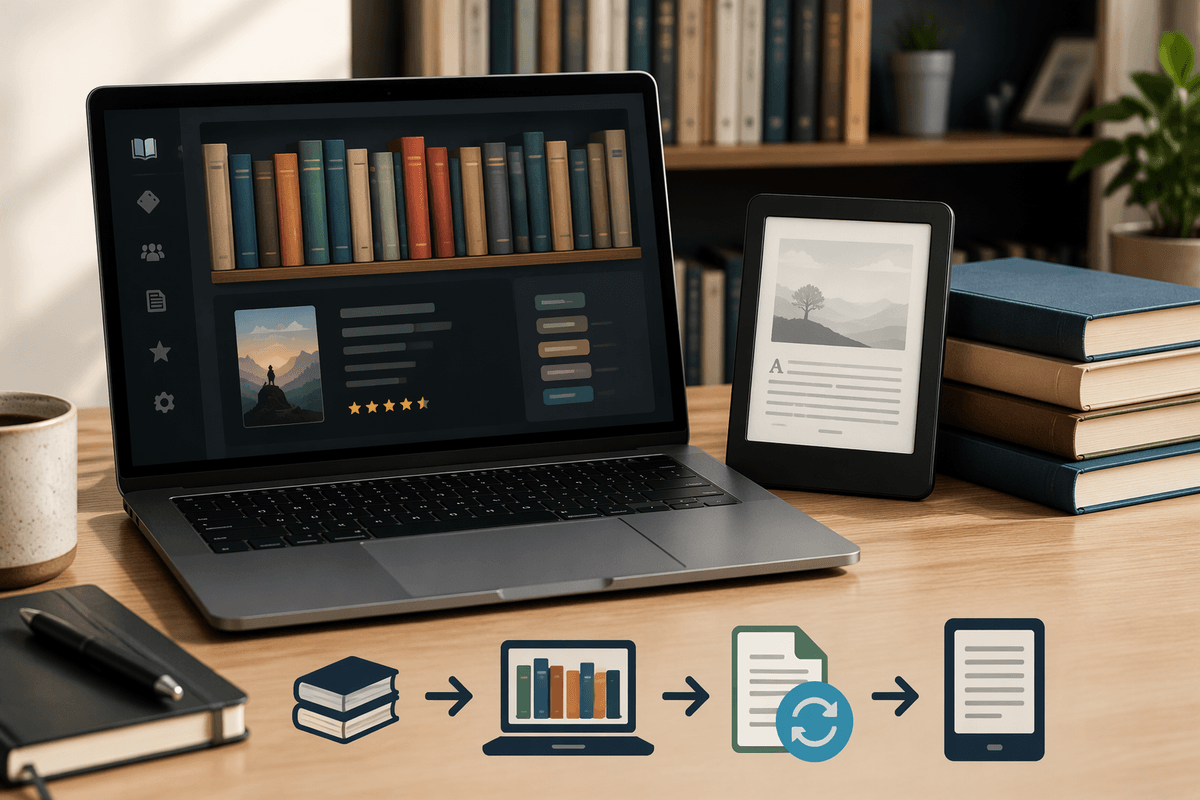
Most e-book collections become difficult to manage for a simple reason: the books are scattered. Some sit in a store app, others are stored as EPUB or PDF files, and a few may be stranded on an older device. Calibre gives those books a central home where you can catalog them, correct their details, and see what you actually own. Instead of searching through folders or switching between apps, you work from one library.
That central position matters because organization is only part of the problem. Calibre can convert books for devices that prefer different formats, keep multiple versions when necessary, and transfer selected titles when you are ready to read. It does not remove every limitation—PDFs may still convert poorly, and store protections can prevent conversion—but it gives you control over the parts you can manage. Once the library is dependable, everyday reading becomes much less frustrating.
Build a Clean Library from the Start

When you first open Calibre, resist the temptation to import every file at once. Create one main library in a location that is easy to back up, then add books in manageable groups. Calibre copies the files into its own folder structure, so you do not need to organize books manually by author or format. Keeping the original files elsewhere is still wise until you have confirmed that the import worked correctly.
Start by adding books from your computer, then check the library for duplicates, incomplete titles, and books that belong to the wrong author. A quick review at this stage prevents small errors from spreading across your devices later. If your collection is large, work through it by folder, author, or reading project instead of trying to fix everything in one sitting. You may also want a separate library for work documents, reference material, or temporary downloads. That keeps your main reading collection focused, although maintaining multiple libraries adds another place to search when you cannot remember where a book was stored.
Make Metadata Work for You
Once the books are in one place, metadata becomes the quickest way to make the collection useful. Correct the title, author, series, and publication details before adding more elaborate organization. A book saved under an inconsistent author name can be hard to find, while a missing series number can leave the reading order unclear. Calibre lets you edit these fields directly, and its metadata tools can help fill in gaps, but review the results rather than accepting every suggestion automatically.
Tags are especially valuable because they describe how you use a book, not just what it is. Tags such as “to read,” “reference,” “favorites,” or “short stories” can support searches and create practical reading lists. Custom columns can track details such as your rating, whether you own a print copy, or where you stopped reading. Keep the system small enough to maintain. Dozens of overlapping tags create another kind of clutter, and online metadata may contain errors, duplicate series names, or details that do not match your edition. Consistent choices matter more than filling every available field.
Convert Books Without Losing Control
Conversion works best when you treat it as a device-specific decision, not a routine cleanup step. Before changing a book, check what your reader supports and keep the original format in Calibre. EPUB is usually a flexible source, while formats such as PDF, DOCX, or poorly structured web files may need extra adjustment. Select the book, choose the conversion option, and review the output settings for page size, margins, fonts, and table of contents. Small changes here can make the difference between a comfortable book and one filled with awkward spacing or broken chapters.
Do not overwrite a good copy simply because a conversion is available. Calibre can store several formats for the same title, allowing you to keep an original EPUB alongside a device-ready version. This is useful when switching readers, but it also increases storage and can leave you unsure which copy to send. Give converted files clear names or use formats consistently for each device. DRM-protected books are a separate limitation: Calibre cannot freely convert files that remain locked by store software, and attempts to work around those restrictions may violate the store’s terms or local law. Test one chapter before converting a large batch.
Send the Right Books to Every Device
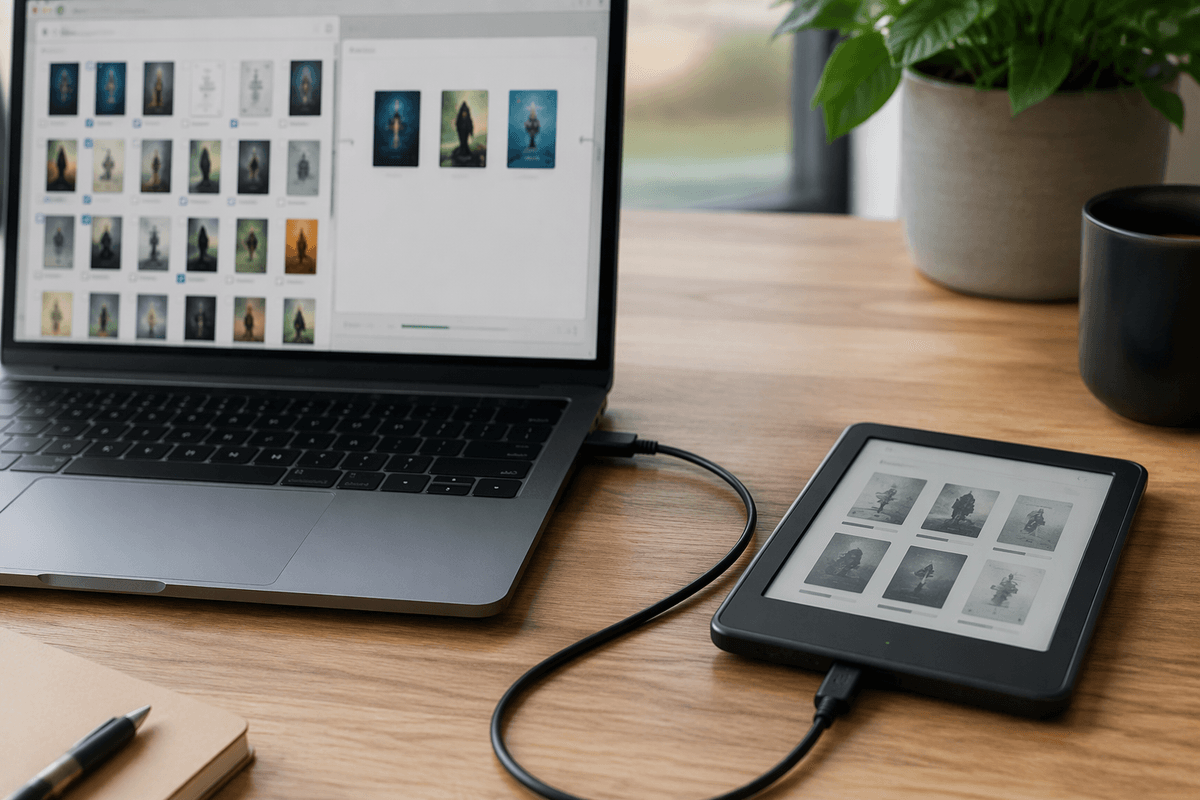
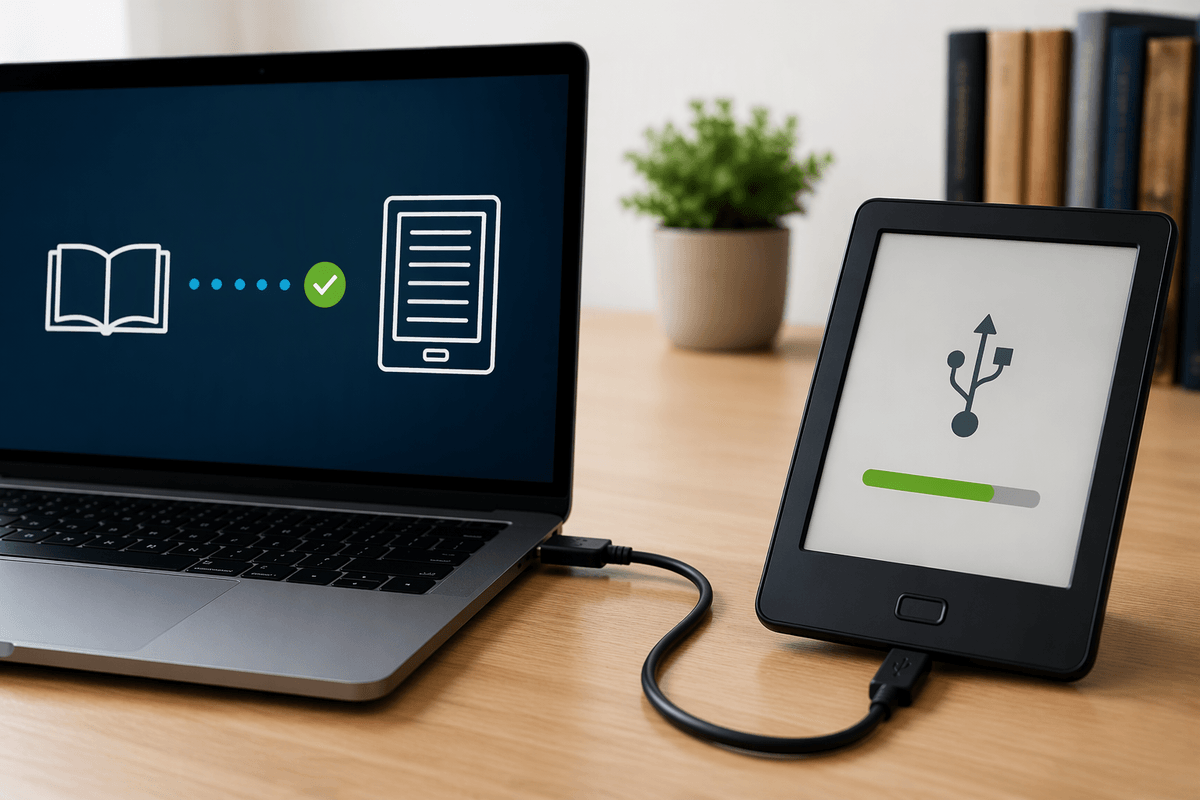
Once a book is in the right format, sending it to a device should be a deliberate choice rather than a full-library transfer. Connect your e-reader by USB, let Calibre identify it, and select only the titles you expect to read soon. You can send a single book, several books, or a filtered group based on tags, authors, or reading status. Check the device view afterward to confirm that the title arrived and that its cover and metadata display correctly. This is also a useful time to remove books you have finished, especially on devices with limited storage.
Different readers handle files and metadata in different ways, so expect occasional adjustments. A device may prefer one format, rename a book, or ignore a custom column that appears in Calibre. Device-specific conversion settings can reduce these surprises, but they require testing. Wireless delivery and email options may be convenient when supported, while USB remains more predictable for large transfers or unreliable connections. Keep a small “ready to read” tag or collection, and send from that list instead of browsing the entire library each time.
Use Calibre for Everyday Reading Management
After transfer becomes routine, Calibre can also serve as a simple reading dashboard. Use a few consistent fields to record what you plan to read, what you are currently reading, and what you have finished. A tag such as “next,” a custom rating, or a last-read note is often enough. You can sort by author, series, date added, or reading status instead of relying on memory. When you finish a book, update its status immediately so your next search reflects reality.
Regular maintenance works better in short sessions than as a major cleanup project. Once a week or month, review newly added books, merge obvious duplicates, correct covers, and remove temporary files you no longer need. Save a backup of the Calibre library, especially before reorganizing folders or moving it to another computer. Remember that Calibre tracks the files and metadata in its library; it does not automatically synchronize every reading position, highlight, or note across all apps and devices. Those details may remain tied to the device or reading service. Treat Calibre as the reliable catalog and transfer point, while keeping device-specific reading data where your reader stores it.
Turn a Messy Collection into a Reading System
A useful Calibre library is not defined by how perfectly it is arranged on day one. It works because each book has a clear place, readable metadata, and a known next step. When a new title arrives, add it to the library, check its details, choose the format your device needs, and place it in a small reading queue. That routine prevents downloads from becoming another abandoned pile.
The system also needs boundaries. Keep original files, avoid unnecessary conversions, and back up the library before major changes. You will still encounter protected books, poor PDF layouts, duplicate editions, and devices that handle metadata differently. The goal is not to eliminate every inconvenience. It is to make the common tasks predictable, so finding, preparing, transferring, and maintaining books takes minutes instead of repeated searching.