What Makes a Standard TV Internet-Ready?
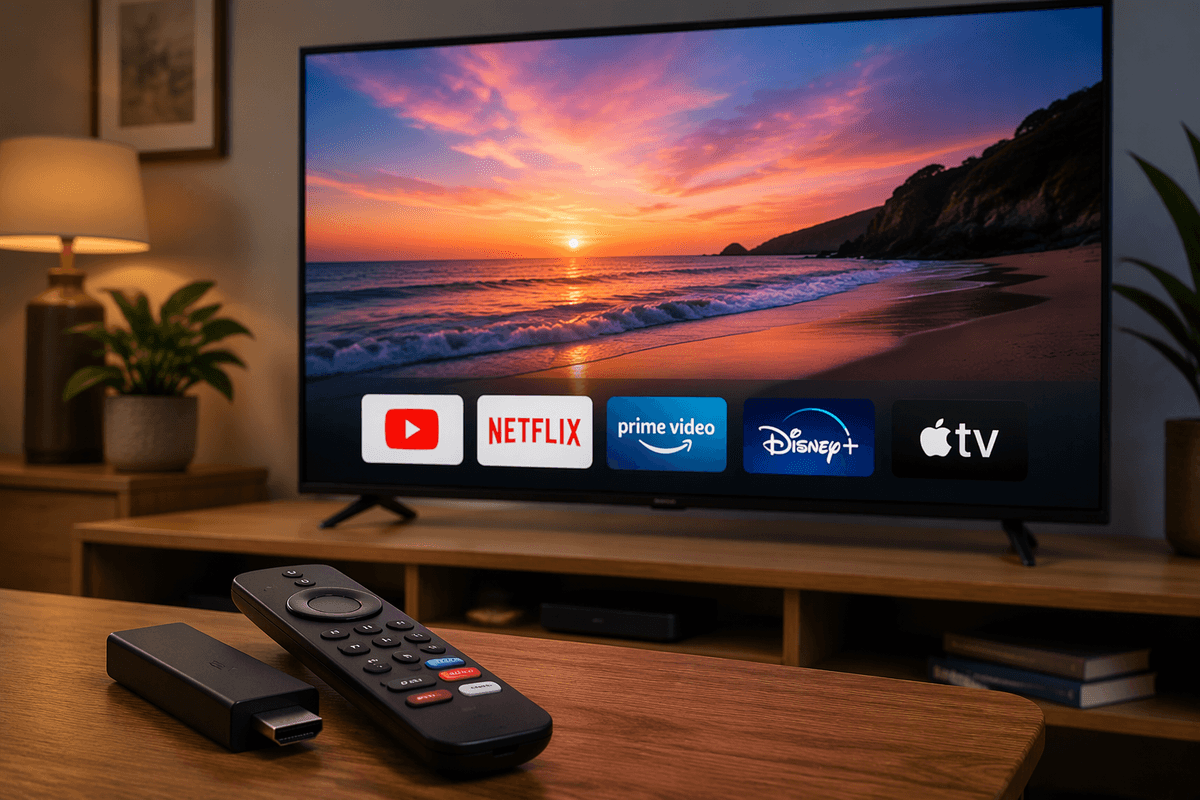
A standard television becomes internet-ready when another device handles the online connection and sends the video signal to the screen. The TV itself does not need built-in apps or Wi-Fi. A streaming stick, streaming box, game console, or computer can receive services such as Netflix, YouTube, and other online video platforms, then display them through the television’s available input.
The key connection is usually HDMI, which carries both picture and sound through one cable. Older televisions may instead use composite cables with red, white, and yellow plugs, though compatible devices are less common and picture quality is lower. You also need a home internet connection, normally through Wi-Fi or an Ethernet cable. In practice, the TV acts as the display while the connected device provides the internet access, apps, menus, and remote-control functions.
Check Your TV Before Buying Anything
Before choosing a device, inspect the television and note which inputs it actually has. Look for an HDMI port, usually a narrow rectangular socket labeled HDMI or HDMI IN. This is the easiest connection because most current streaming sticks and boxes use it. If the TV has several HDMI ports, any available one should work. Also check whether the remote can change inputs, since you will need to select the port used by the streaming device.
If there is no HDMI port, look for the red, white, and yellow composite inputs, or possibly component inputs with red, green, and blue connectors. These older connections limit your choices. Many modern streaming devices cannot connect to them directly, so you may need a compatible converter, an older media player, or a computer with suitable video output. Converters can add cost and may introduce picture or sound problems.
Finally, check the TV’s age, screen resolution, available power outlets, and placement near the router or Wi-Fi signal. Confirming these details first prevents buying a device that cannot connect cleanly or requires extra equipment.
Choose Between Streaming Devices and Computers
For most older televisions with an HDMI input, a streaming stick or small streaming box is the simplest choice. These devices are designed for one purpose: opening streaming apps with a remote. A stick is compact and usually less expensive, while a box may offer faster menus, more storage, wired Ethernet, or additional audio and video connections. Choose a device that supports the services you use and matches the TV’s resolution. A 4K device will still work with a high-definition TV, but it will not improve the screen’s existing picture quality.
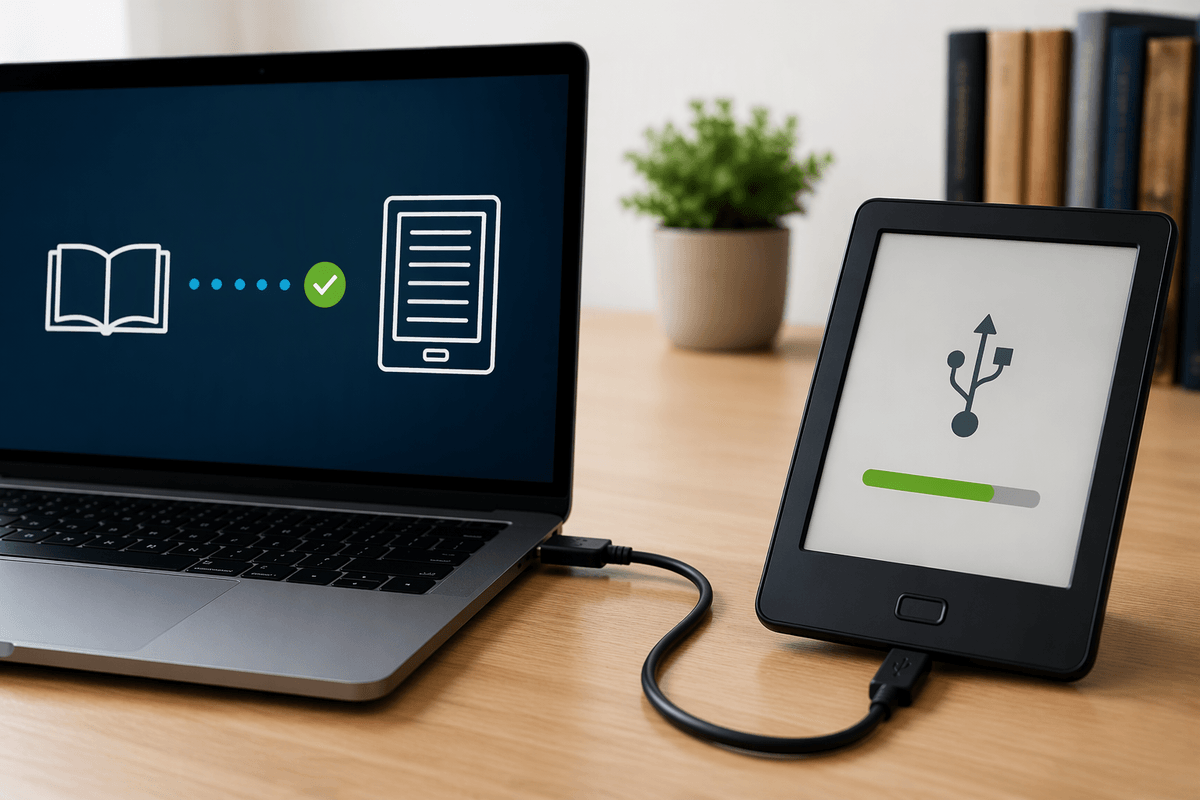
A computer is more flexible when you need ordinary websites, video calls, downloaded files, or services that are not available as television apps. You can connect a laptop directly by HDMI, then use the computer’s screen settings and browser to display online video. The trade-off is convenience: you may need a keyboard, mouse, longer cable, and a nearby place to keep the computer. Older laptops may require a video adapter, and some adapters carry picture but not sound. For routine streaming, use a dedicated device; choose a computer when broader web access matters more than a simple remote-controlled experience.
Connect the Device and Complete Setup
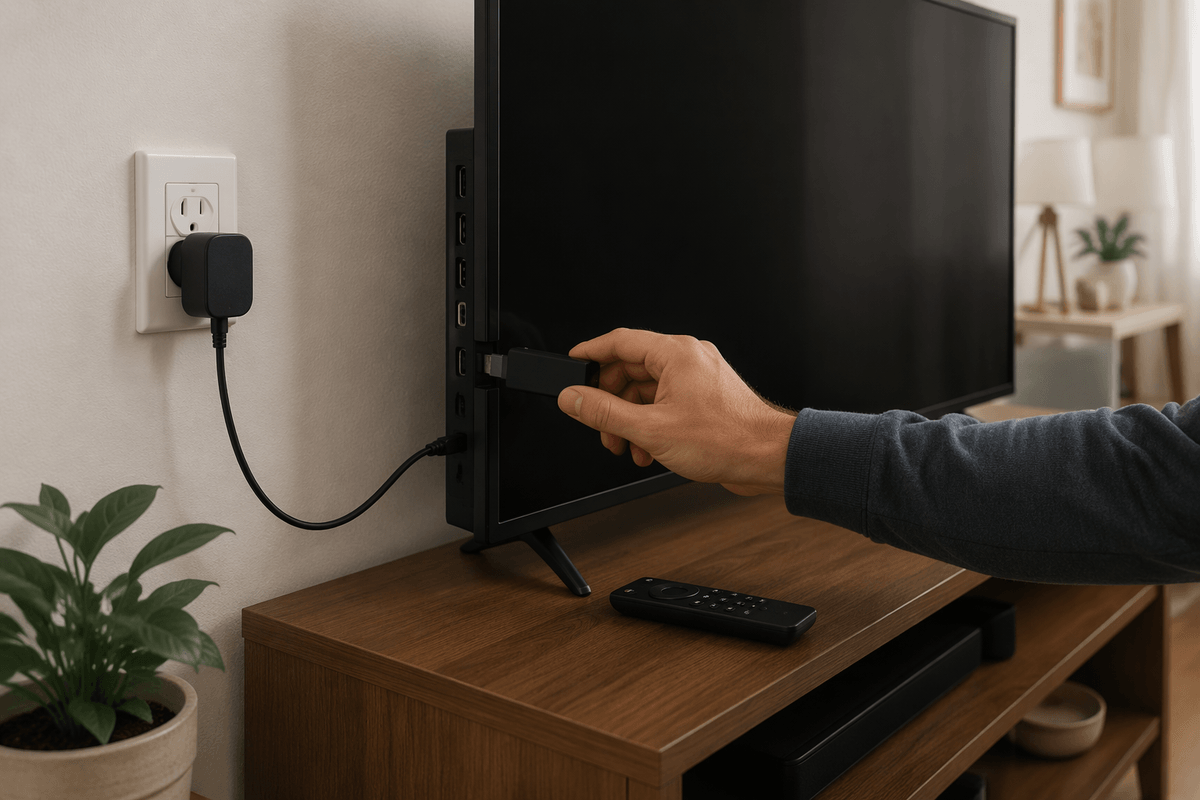
Once you have the right device, connect it while the TV is turned off. Plug the streaming stick or box into an available HDMI port, then connect its power cable to a wall outlet or, if supported, the TV’s USB port. Wall power is usually more reliable because some older USB ports do not provide enough power. Turn on the TV, select the matching HDMI input, and wait for the device’s setup screen. With a computer, connect the HDMI cable, choose the correct input, and set the computer to mirror or extend its display.
Follow the on-screen instructions to pair the remote, select your language, and join your home Wi-Fi network. Entering a long wireless password with a remote can be awkward, so use the device’s phone app or a USB keyboard if that option is available. Install system updates before judging performance, then sign in only to the streaming services you use. If the device supports Ethernet and Wi-Fi is unreliable, a wired connection can reduce buffering, although it requires a network cable running from the router. Finish by testing both video and sound, and confirm that the remote can control the TV’s volume or power when supported.
Make Sure Your Internet Can Handle Streaming
A streaming device can be connected correctly and still perform poorly if the home network is weak. Test the TV from its usual viewing position, not beside the router. A stable connection matters more than a high speed shown in an internet plan. As a general guide, allow roughly 5 Mbps for one high-definition stream and substantially more for 4K video. Several people watching video, joining video calls, or downloading large files at the same time can use that capacity quickly.
If playback pauses, first move the router or streaming device into a clearer position, away from cabinets, thick walls, and other electronics. Restarting the router and checking for device updates can also help. When Wi-Fi remains unreliable, use Ethernet if the streaming device has a network port, or consider a mesh system or Wi-Fi extender. An extender may improve coverage but can reduce speed if placed too far from the router. Keep expectations realistic with older internet plans: lowering video quality may provide smoother viewing than spending money on a faster streaming device.
Compare Cost, Control, and Long-Term Convenience
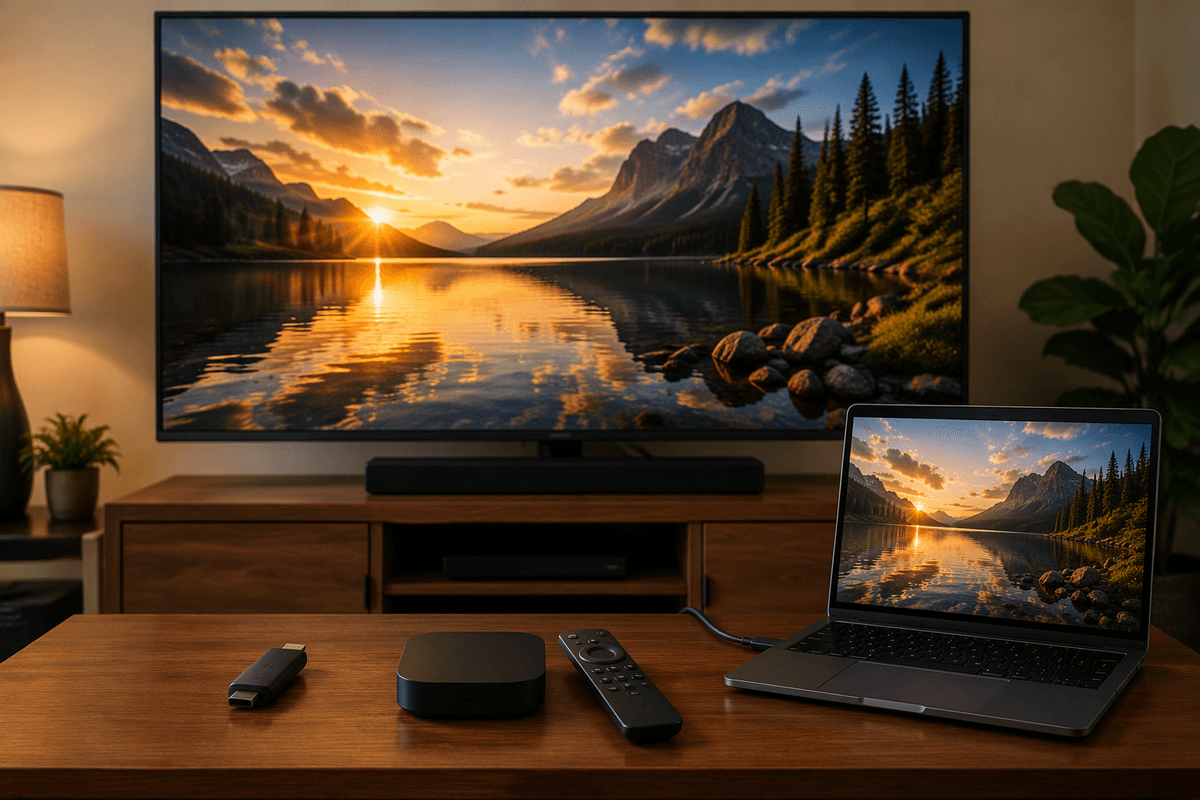
Once the connection works, the best choice usually depends less on the purchase price than on how often you will use it. A basic streaming stick may cost less upfront and cover the main services, but a faster box can be easier to live with if menus respond slowly or several apps are used every day. A computer may already be available, which avoids buying another device, but its keyboard, updates, notifications, and occasional troubleshooting make it less convenient for casual viewing.
Control is another practical difference. A streaming device gives you a simple remote and a television-style interface, while a computer provides broader access to websites, settings, and files. That flexibility can be useful, but it also means managing browser tabs, passwords, software updates, and display settings. Check whether the device still supports the services you care about, since older hardware may eventually stop receiving app updates even though the TV itself continues working.
For most households, the sensible balance is a supported streaming device powered from the wall, with Ethernet available if Wi-Fi is inconsistent. Spend extra for speed, storage, or wired networking only when those features solve a real problem. This keeps the setup affordable without creating daily workarounds.
A Simple Path to Online Television
For most owners of older televisions, the simplest path is straightforward: confirm the TV has HDMI, choose a supported streaming stick or box, connect it to wall power, and join it to the home Wi-Fi network. Select the matching input, install updates, sign in to the services you use, and test playback from the normal viewing position. This approach adds online video without replacing a working screen.
If the TV lacks HDMI, or if you need full web access rather than television apps, a computer or converter may be more suitable. Those options cost more in cables, space, or maintenance, so avoid adding equipment unless it solves a specific limitation. A careful check before buying usually leads to reliable streaming with fewer surprises.