Why Windows Security Still Needs Attention
Windows includes capable security tools, but they do not remove the need for attention. Updates may be delayed, protections can be weakened by careless settings, and everyday actions—such as installing unknown software, reusing passwords, or opening convincing emails—can still create openings for attackers.
Effective security is less about adding complicated software than maintaining a dependable baseline. Current updates, strong sign-in protection, limited administrator access, cautious app permissions, safer browsing habits, and reliable backups address the most common routes to malware, account takeover, and data loss. The goal is not perfect protection; it is reducing unnecessary exposure and making mistakes less damaging.
Start With Windows Updates and Core Protection
Begin with the protections that should remain active in the background. In Windows Update, allow security and quality updates to install automatically, and restart when required rather than postponing updates indefinitely. Updates often close weaknesses that attackers can exploit through websites, files, or network connections, so an out-of-date system is an avoidable risk.
Keep Microsoft Defender Antivirus enabled unless a reputable security product is managing the same functions. Check that real-time protection, cloud-delivered protection, and automatic sample submission are active, then run an occasional manual scan if something seems unusual. Windows Security also provides firewall protection for different network types; leave the firewall enabled, particularly on public networks.
Built-in reputation checks can warn about suspicious apps, downloads, and websites. They are not a substitute for judgment, but disabling them removes a useful layer of protection with little benefit for most users. Review Windows Security occasionally rather than assuming its status has not changed. If another antivirus program, system “optimizer,” or troubleshooting step alters these settings, restore the baseline before relying on the PC again.
Secure Accounts, Sign-Ins, and Administrator Access
A secure Windows installation can still be compromised through a weak account. Use a separate, unique password for the Microsoft account or local account, and enable multifactor authentication when it is available. A password manager makes unique passwords practical, while Windows Hello—such as a PIN, fingerprint, or facial sign-in—can provide a convenient additional safeguard on supported devices.
Keep everyday work on a standard user account where possible. Administrator access allows software and system changes, so malware has more influence when it runs under an administrator account. A standard account will not prevent every attack, but it adds a useful barrier by requiring approval or administrator credentials for sensitive changes. Treat unexpected User Account Control prompts as a warning, not an inconvenience to dismiss automatically.
Review the accounts listed under Windows Settings regularly and remove old users, unused work accounts, and unnecessary administrator privileges. Lock the screen when leaving the PC, use a short inactivity timeout, and avoid sharing an account. These habits reduce the damage caused by an unattended or stolen device and make unauthorized changes easier to detect.
Reduce the Apps and Permissions You Trust
Every installed app expands the amount of software that must be trusted and maintained. Remove programs that are no longer used, especially download tools, browser extensions, remote-access utilities, and “optimizer” products that can introduce unwanted changes. Install software from its developer or a reputable app store, and avoid bundled installers that add unrelated programs. If an application asks for administrator approval, confirm that the request matches something you intentionally started.
Review app permissions in Windows Settings, particularly access to the camera, microphone, location, contacts, notifications, and files. Most desktop programs have broad access once they are installed, so permissions are not a complete substitute for choosing reputable software. Still, disabling access that an app does not need can limit the consequences of a compromised or overly intrusive program. Remove browser extensions that are unfamiliar, redundant, or no longer necessary; extensions can read or alter website content depending on their permissions.
Do not routinely bypass warnings because a program is inconvenient to install. SmartScreen and User Account Control prompts are most useful when they interrupt an unexpected action. When testing unfamiliar software is unavoidable, use a non-administrator account, verify its publisher, and uninstall it afterward if it has no continuing purpose. A smaller, cleaner software set is easier to update, inspect, and protect.
Block Phishing Before It Reaches Your Files
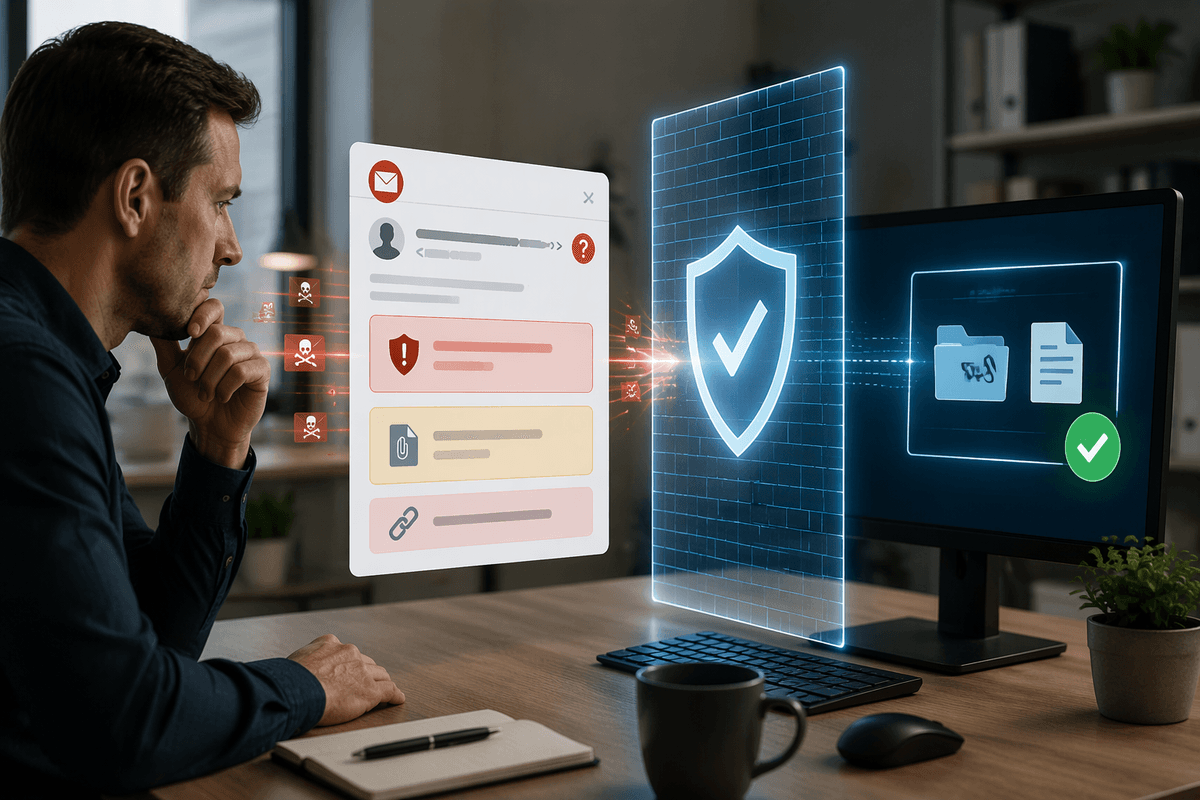
Phishing often succeeds before malware reaches the PC. Treat unexpected messages, login alerts, invoices, and shared documents as unverified until the sender and request make sense. Do not rely on a familiar logo or display name; inspect the actual address, hover over links, and be cautious when a message creates urgency or asks for passwords, payment, or security codes. If a request appears to come from a colleague or bank, contact that organization through a known channel rather than replying.
Keep Microsoft Defender SmartScreen and browser phishing protection enabled, and download files only when the source and purpose are clear. Be especially careful with compressed files, scripts, shortcut files, and documents that ask you to enable macros or unusual content. A website that displays a convincing Microsoft sign-in page can still be fraudulent, so open important services through a saved bookmark or by typing the address yourself. Use separate browser profiles or private workspaces when practical, and remove notifications or extensions that create distracting prompts. When a message seems suspicious, report it and delete it instead of repeatedly examining its links or attachments.
Prepare for Ransomware, Theft, and Failure
Strong prevention cannot eliminate every failure. Protect important files with backups that are automatic, regular, and separate from the PC. Keep at least one backup disconnected or otherwise protected from ordinary account access, because ransomware can encrypt files mounted on connected drives and synchronized folders. Cloud storage can help with recovery, but synchronization is not always the same as a recoverable backup; deleted or encrypted files may be copied across devices. Periodically confirm that backups contain current files and that you know how to restore them.
Prepare for device theft as well as malware. Enable device encryption when supported, use a strong sign-in method, and avoid leaving the PC unlocked in public or shared spaces. Find-and-lock features may help recover or protect a missing device, but they are not a substitute for encryption. Keep recovery codes and important account-recovery information somewhere accessible when the computer itself is unavailable.
Failure also includes a damaged drive, failed update, or locked account. Maintain more than one administrator recovery path, store essential documents in a safe location, and know where Windows recovery options are located before an emergency occurs. If ransomware or serious compromise is suspected, disconnect the PC from networks, avoid repeatedly signing in, and use a separate trusted device to change important passwords and seek help. Recovery is far easier when preparation happens before the crisis.
Make Security a Routine, Not a One-Time Fix
Windows security works best as a small routine rather than a single setup session. Let updates install, review Windows Security after major changes, remove unused software, check account privileges, and confirm that backups are completing. Once a month, inspect recent sign-ins, installed apps, browser extensions, and recovery information. These checks help catch changes that would otherwise remain unnoticed.
Keep the baseline simple enough to maintain: current software, active core protections, strong sign-in safeguards, cautious browsing, limited permissions, and tested backups. No setting prevents every mistake or attack, but consistent attention reduces exposure and limits the damage when something goes wrong. Security becomes more reliable when it is built into ordinary computer maintenance rather than treated as an emergency project.