Why Hulu Cancellation Depends on Billing
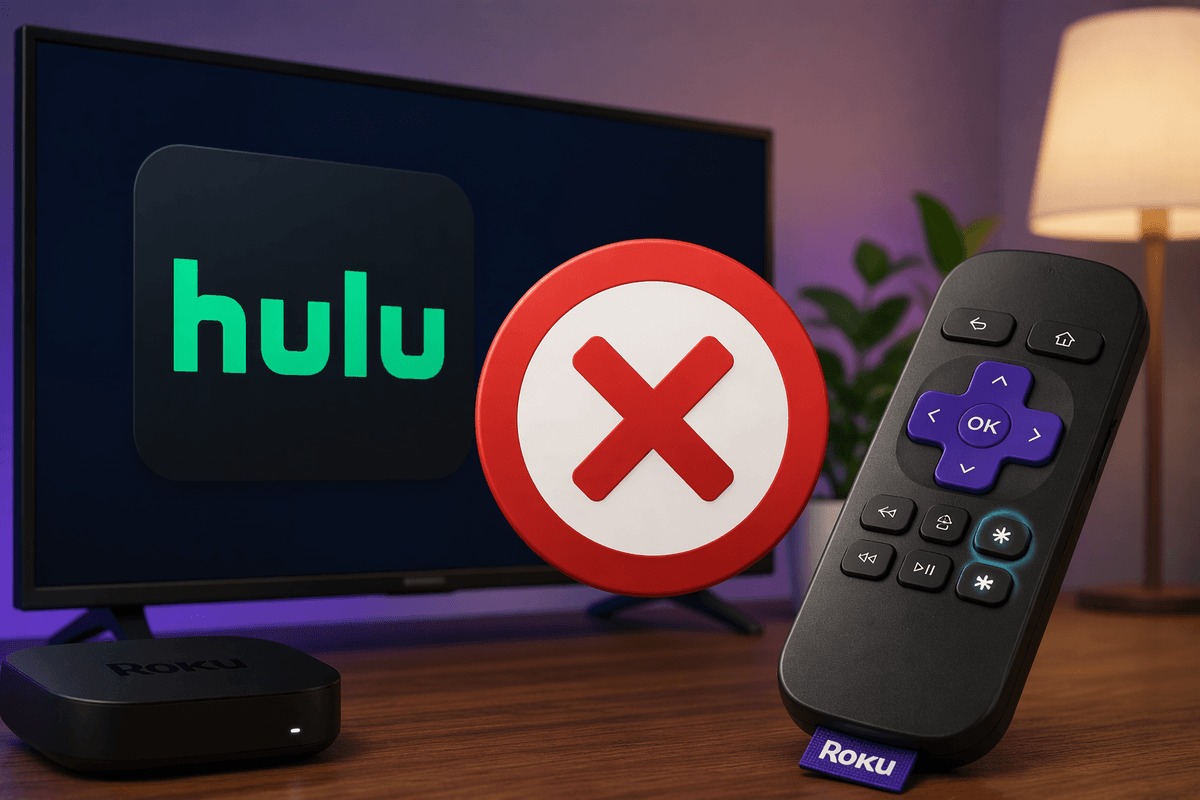
When Hulu appears on a Roku device, it is easy to assume Roku controls every part of the subscription. In practice, the device may only provide access to Hulu while billing is handled by Roku, Hulu, a mobile app store, or another provider. The correct cancellation path depends on that billing relationship, not simply on where you watch.
Checking the payer first prevents a common problem: following Roku’s cancellation steps when Hulu bills you directly, or canceling in Hulu when Roku manages the renewal. It also helps you identify the right place to confirm the end date and any remaining access. A few minutes spent locating the billing manager can prevent another charge and make the cancellation easier to verify.
Check Who Manages Your Hulu Subscription
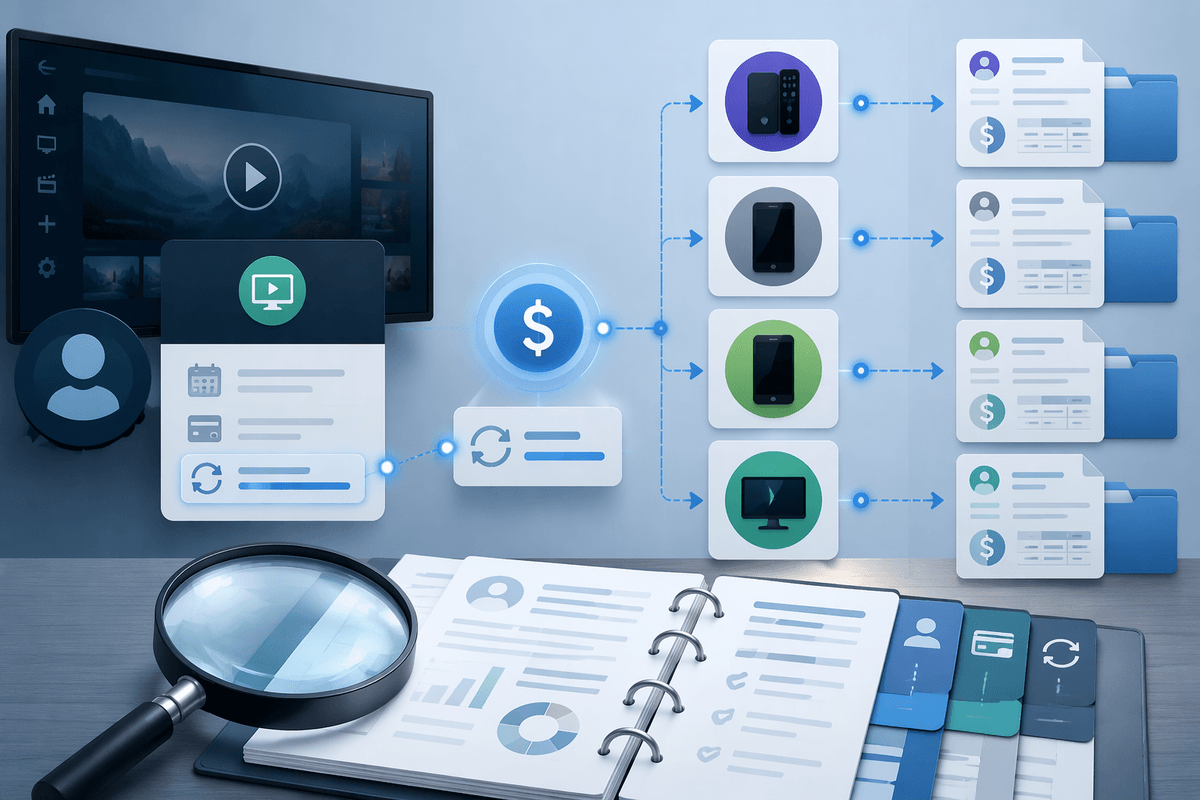
Start by checking the subscription details before selecting any cancellation option. On your Roku device, open the home screen, highlight Hulu, press the asterisk button, and look for subscription or account information. You can also review Roku’s subscription management area from a browser and see whether Hulu appears among the services billed through Roku.
If Hulu is not listed there, sign in to your Hulu account and open the account or billing details. Look for wording that identifies the payment provider, such as Roku, Apple, Google, or Hulu. Your confirmation emails and bank or card statements can provide another useful clue, especially if the account page is unclear. The company shown as the recurring charge is usually the place that controls cancellation. Do not cancel in multiple locations at random, since that can create confusion without stopping the actual renewal. Once you identify the billing manager, use that provider’s cancellation steps and note the displayed access end date.
Cancel Hulu Directly Through Your Roku Device
When Roku is listed as the billing provider, you can usually cancel Hulu from the device itself. From the Roku home screen, highlight the Hulu app without opening it, then press the asterisk (*) button on your Roku remote. Select “Manage subscription” or a similarly labeled option, review the renewal details, and choose “Cancel subscription.” Roku may ask you to confirm more than once or select a reason before completing the request.
After confirming, look for a message stating that the subscription is canceled or will not renew. The wording may indicate a future date when access ends rather than stopping Hulu immediately. That means you can normally continue watching through the paid period, but Roku should not charge you for the next billing cycle. If the menu shows only options to move, remove, or open the Hulu channel, do not assume the subscription has been canceled. Those controls affect the app on the device, not necessarily the recurring payment. Use Roku’s account website instead to manage the subscription when the on-screen menu does not display billing controls.
Use the Roku Website When the TV Menu Falls Short
When the Roku menu does not show a subscription control, sign in to your Roku account from a browser and open the page for managing subscriptions. Find Hulu in the list of recurring services, select it, and review the renewal information before choosing the cancellation option. Follow each confirmation prompt until Roku displays a clear cancellation message.
Save the confirmation details, including the date when access ends, and check whether Roku sends a confirmation email. If Hulu does not appear among your Roku subscriptions, Roku is probably not managing that charge. In that case, return to Hulu’s account billing page or check the provider named on your payment statement. The website can be easier to use than the television interface, but it cannot cancel a subscription billed through another company. Using the wrong account is another common obstacle, so confirm that the Roku login matches the device or payment account connected to Hulu.
What to Do If Hulu Bills You Directly
If Hulu bills you directly, cancel through your Hulu account rather than through Roku. Sign in to the Hulu website using the account connected to the subscription, open the account page, and find the subscription or billing section. Choose the cancellation option and continue through the prompts until Hulu confirms that the plan will not renew. You may be offered a pause or a lower-priced plan first, so read each screen carefully and select the option that completes cancellation if you want billing to stop.
Hulu may keep your access active until the end of the current paid period instead of ending it immediately. Record the displayed access-through date and save the confirmation email or take a screenshot of the completed cancellation. If the account page does not show a cancellation control, check whether you are signed in with a different Hulu login or whether another provider handles payment. Removing Hulu from Roku will not cancel direct Hulu billing, and deleting the account without first confirming the subscription status can make it harder to verify whether the renewal was stopped.
Confirm Cancellation and Avoid Another Charge
After canceling, verify the result from the same provider that processed the payment. A successful cancellation should show language such as “canceled,” “won’t renew,” or an access-through date. If Roku manages billing, check Roku’s subscription list; if Hulu bills you directly, check Hulu’s account page.
Save the confirmation email, screenshot the status page, and note the exact date your access ends. Most cancellations stop the next renewal while allowing continued viewing through the period you already paid for. Check your bank or card statement around the usual billing date as an additional safeguard, but remember that a pending authorization may not be a new renewal. If another charge appears after the confirmed cancellation date, contact the billing provider promptly and provide the confirmation details. Keep the Roku account, Hulu account, and payment method information available so support can identify which subscription was active and whether the charge came from a different account.
When the Cancellation Option Is Missing
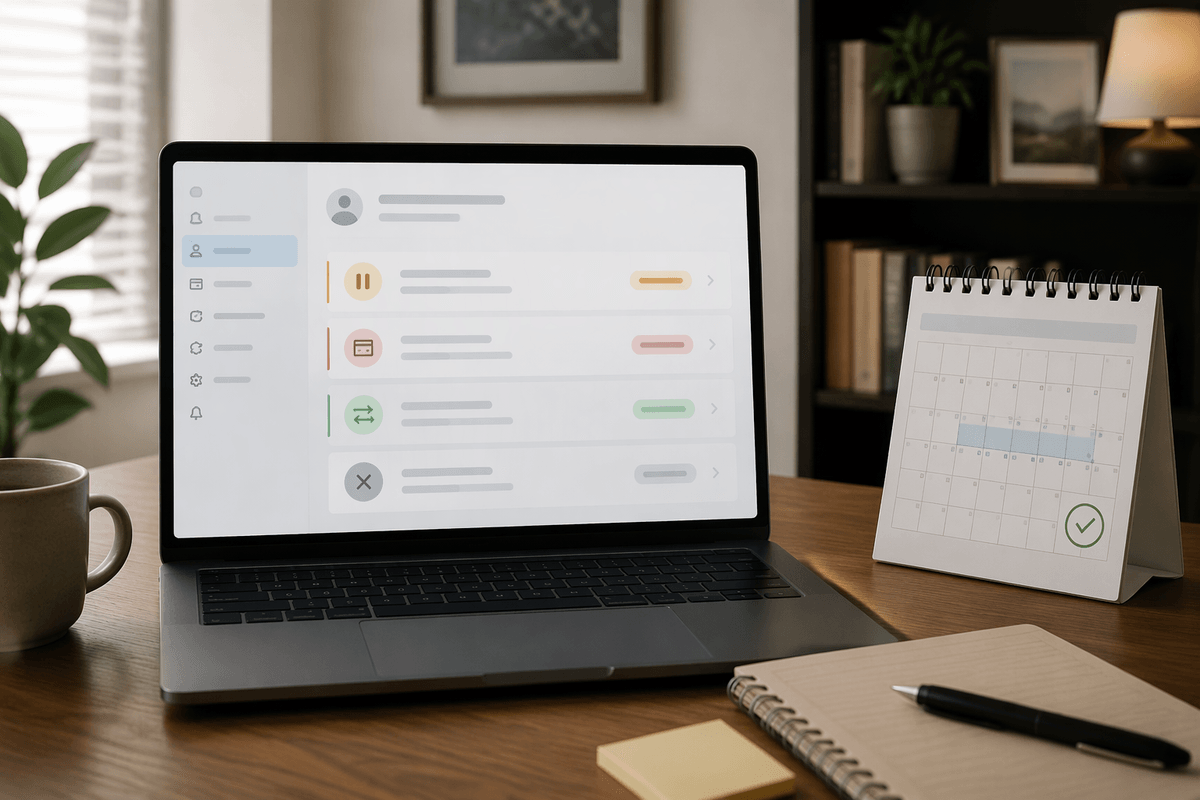
A missing cancellation button usually means you are looking in the wrong billing system, not that cancellation is impossible. Check whether Hulu appears under Roku’s subscription list, then compare that result with Hulu’s account billing page and your payment statement. If Roku does not list Hulu, try the Hulu account associated with the email used during sign-up. A different email, household member’s account, Apple or Google billing, or a promotional bundle can place the subscription under another provider.
Also check for account limitations. A paused subscription, recently changed plan, pending payment issue, or already-canceled membership may replace the normal cancellation button with status information. If the page says the plan will not renew, save that message and the access-through date instead of attempting another cancellation. If no provider clearly claims the subscription, review the recurring charge description on your bank or card statement and contact the named billing company. Removing Hulu from Roku, deleting the app, or changing the payment method does not reliably stop renewal. Use the provider that processed the recurring charge, then verify its confirmation.
A Clear Final Check Before You Close the Account
Before closing the Hulu or Roku account, make one final check of the billing provider, cancellation status, and access-through date. The account handling the recurring payment should clearly show that Hulu is canceled or will not renew. If you can still watch until a stated date, that normally means cancellation succeeded rather than failed. Save the confirmation email or screenshot, especially if the next billing date is close.
Keep the account open until you have recorded those details and confirmed that no other provider is charging for Hulu. Removing the app or deleting an unused Roku profile is not a substitute for cancellation. Once the renewal is disabled and the end date is documented, you can close the account or leave it inactive with much less risk of an unexpected charge.