Why Photopea Starts Feeling Slow
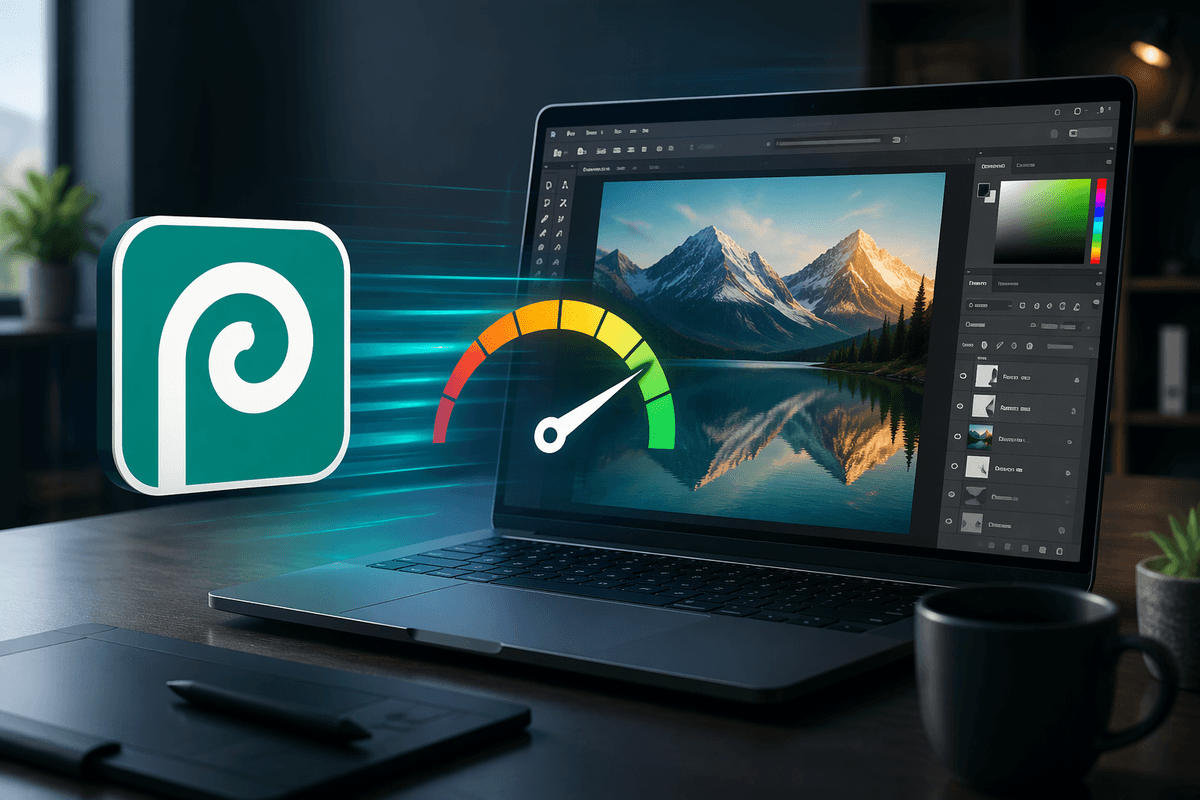
Photopea usually feels slow when one part of the editing setup has more work than it can handle smoothly. A large document, many layers, high-resolution images, smart objects, filters, and multiple open files can all increase the amount of processing required for simple actions. The result may appear as delayed brush strokes, slow zooming, pauses when switching layers, or a frozen-looking tab.
The cause is not always Photopea itself. Your browser may be using too much memory, another tab or extension may be competing for resources, or the device may be short on available RAM. Internet speed matters mainly when opening files, loading resources, or saving online; everyday editing is affected more by the browser, document, and hardware. Identifying which of these is under strain prevents unnecessary changes and points you toward the quickest fix.
Check Whether Your Browser Is the Bottleneck
Start by testing Photopea in a clean browser window. Close unnecessary tabs, especially video, social media, and web apps, then reload the document and repeat the action that felt slow. If performance improves, the problem is probably competing browser activity rather than the file alone. A private window can provide another quick check because it often disables extensions, although browser settings may vary. Extensions that scan pages, block scripts, manage screenshots, or alter colors can add overhead, so temporarily disabling them can identify a conflict.
Watch for patterns while you work. If Photopea becomes slower after many tabs remain open, the browser may be running low on memory. If the whole browser stutters, not just the document, check the browser’s task manager or your system’s activity monitor for unusually heavy processes. Updating the browser can also resolve performance bugs, but it may not help on an older device with limited RAM. When Photopea behaves normally in a clean window but slows again in your usual setup, keep fewer tabs open, remove unnecessary extensions, and give Photopea its own browser window.
Reduce the Document’s Workload First
A quick way to improve responsiveness is to reduce the amount of work inside the document. Start with the image dimensions. A photo intended for a small web graphic does not need to remain several thousand pixels wide, and resizing it can make brushes, selections, and transforms respond faster. Remove hidden layers, duplicate layers, and unused masks when you are sure they are no longer needed. Large smart objects, embedded files, and complex filter effects can also consume substantial memory, so simplify or rasterize them when continued editing is not important.
Layer organization matters as well. Temporarily hide adjustment layers, blur effects, and groups to see whether one element causes the delay. If the document contains many versions, save a copy and merge finished sections instead of keeping every construction layer active. This saves resources, but it reduces flexibility: merged layers are harder to edit later. Keep an editable master file, then create a lighter working copy for routine changes or export preparation. If a simple document still lags after these steps, the bottleneck is more likely the browser or device than the file itself.
Adjust Photopea Settings for Better Responsiveness
Once the document is reasonably light, review Photopea’s own performance options. Open the preferences area and look for settings related to hardware acceleration, WebGL, or advanced rendering. These features can make zooming, canvas movement, and previews smoother on a capable device, but they can also cause flickering, black areas, or freezes when the browser or graphics driver handles them poorly. If the interface becomes unstable after enabling one, turn it off and reload Photopea before testing again.
Keep the display simple while editing. Reduce unnecessary panels, close extra document tabs, and avoid leaving resource-heavy previews or effects active when you are making basic changes. If a setting offers a choice between faster rendering and higher visual quality, choose the faster option during editing and restore quality for final checks. Test one change at a time, repeating the same action after each adjustment. This makes it easier to identify what helped instead of changing several settings and losing track of the cause. Settings cannot overcome a severely overloaded file or a device running out of memory, but they can remove rendering overhead that otherwise makes an otherwise manageable document feel delayed.
Free Up Memory Before Changing Hardware
Before replacing your computer, check whether available memory is the immediate problem. Close unused applications, extra browser windows, file previews, and messaging tools, then give Photopea a fresh reload. A device may have enough total RAM on paper but very little available memory after several programs have been open for hours. Saving your work first is important because closing tabs or restarting the browser can discard an unsaved document or interrupt an export.
Restarting the computer is often more effective than repeatedly closing individual windows. It clears background processes and gives the browser a clean allocation of memory. After restarting, open only Photopea and the files you need, then test the same brush stroke, transform, or layer change that previously caused lag. If performance is noticeably better at first but declines as you work, memory pressure is likely involved. Keep in mind that cloud storage space and internet speed do not increase available RAM, and browser memory management differs by device. If Photopea remains slow even after a restart with a small document and few programs open, hardware limitations become more likely.
Know When Your Device Has Reached Its Limit
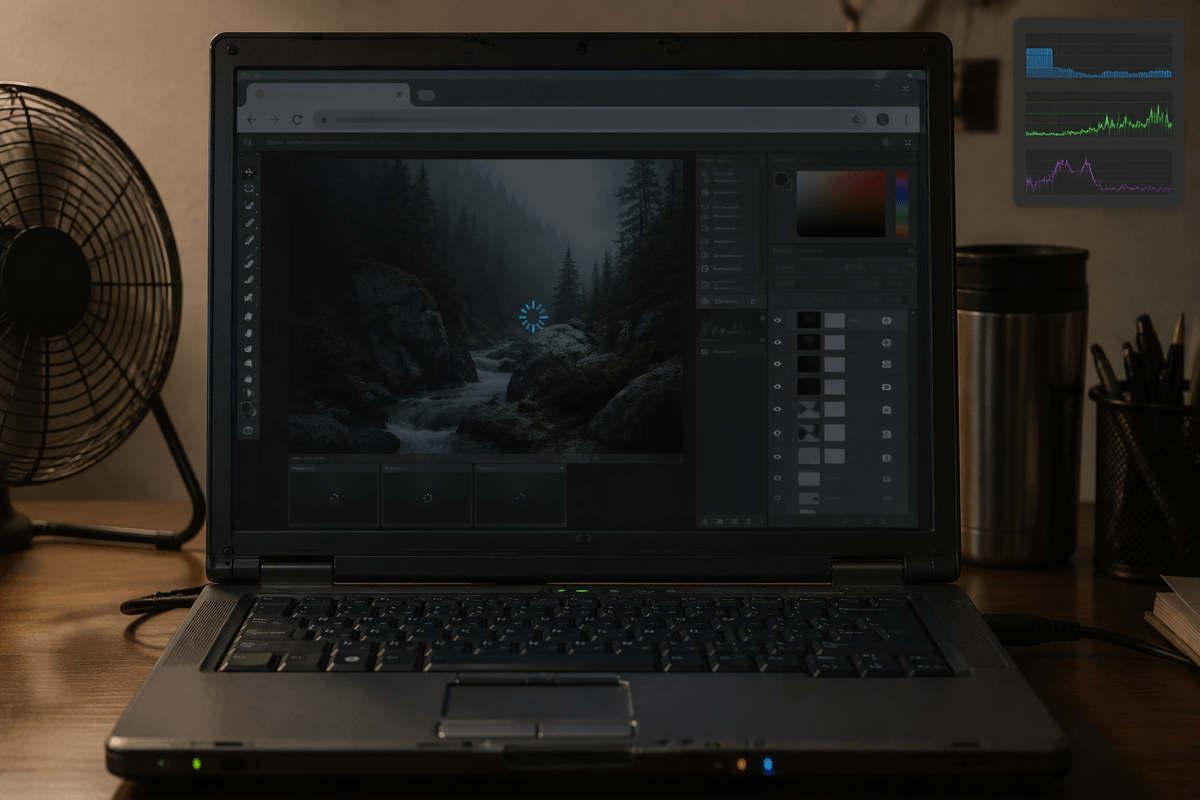
Sometimes the clearest sign of a device limit is consistency. Photopea remains slow after a restart, with few browser tabs open, a modest document, and unnecessary effects removed. The entire interface may pause during ordinary actions such as painting, selecting, zooming, or switching layers. You may also notice that other applications become sluggish at the same time, the fan runs constantly, or the system reports high memory, processor, or graphics usage. These patterns point to limited hardware rather than a single browser setting.
Older laptops and low-memory devices may handle simple graphics but struggle with large canvases, many layers, or high-resolution exports. A faster internet connection will not solve that kind of delay. Before upgrading, reduce document dimensions, work with fewer layers, and close everything unrelated to the edit. If those compromises interfere with normal projects, upgrading RAM, using a newer device, or moving demanding work to a desktop may be practical. Hardware changes cost money, and adding memory is not possible on every laptop, so confirm the limitation first. Test Photopea with a small file and compare its behavior with a demanding one; that comparison helps distinguish a device ceiling from a problem in a particular document.
A Faster Photopea Workflow That Stays Reliable
A reliable Photopea workflow starts with testing before changing too much. Open the document with unnecessary tabs and applications closed, then check a few demanding actions such as brushing, zooming, transforming, and switching layers. If the file is still slow, reduce its dimensions or simplify heavy layers before changing browser settings. If only one browser setup causes trouble, use a clean window, fewer extensions, and regular restarts. This process helps separate document problems from browser or device limitations.
Save an editable master file, but use lighter working copies when possible. Keep the browser focused on the current project, save regularly, and export only after the document responds normally. When a small file remains slow on a freshly restarted device, stop treating the issue as an internet problem and investigate hardware or browser compatibility instead. A few controlled tests usually produce a faster, more stable workflow than repeatedly changing settings at random.