Connecting AirPods to a Chromebook
Connecting AirPods to a Chromebook is usually straightforward, but the process differs slightly from pairing them with an iPhone or Mac. ChromeOS uses its own Bluetooth controls, so the AirPods must first be placed in pairing mode before the Chromebook can detect them. Once connected, they can handle music, video audio, calls, and online classes, although some Apple-specific features may not be available. The most reliable approach is to check Bluetooth on both devices, pair the AirPods through the Chromebook’s Quick Settings, and then confirm that they are selected as the audio output. The steps below cover that process and the most common connection problems.
Check Bluetooth and Prepare Both Devices
Before pairing, make sure Bluetooth is enabled on the Chromebook. Select the status area in the lower-right corner of the screen, then check the Bluetooth tile in Quick Settings. If it is off, select it to turn it on. Keep the Chromebook close to the AirPods and connect the charger if either device has a low battery, since an interrupted connection can prevent pairing.
The AirPods also need to be ready for discovery. Place both earbuds in the charging case, open the lid, and press and hold the setup button on the back until the status light flashes white. If the AirPods are already connected to an iPhone, iPad, or Mac nearby, temporarily turn off Bluetooth on that device or move it away. This prevents the AirPods from reconnecting elsewhere while the Chromebook searches for them.
Pair AirPods with Your Chromebook
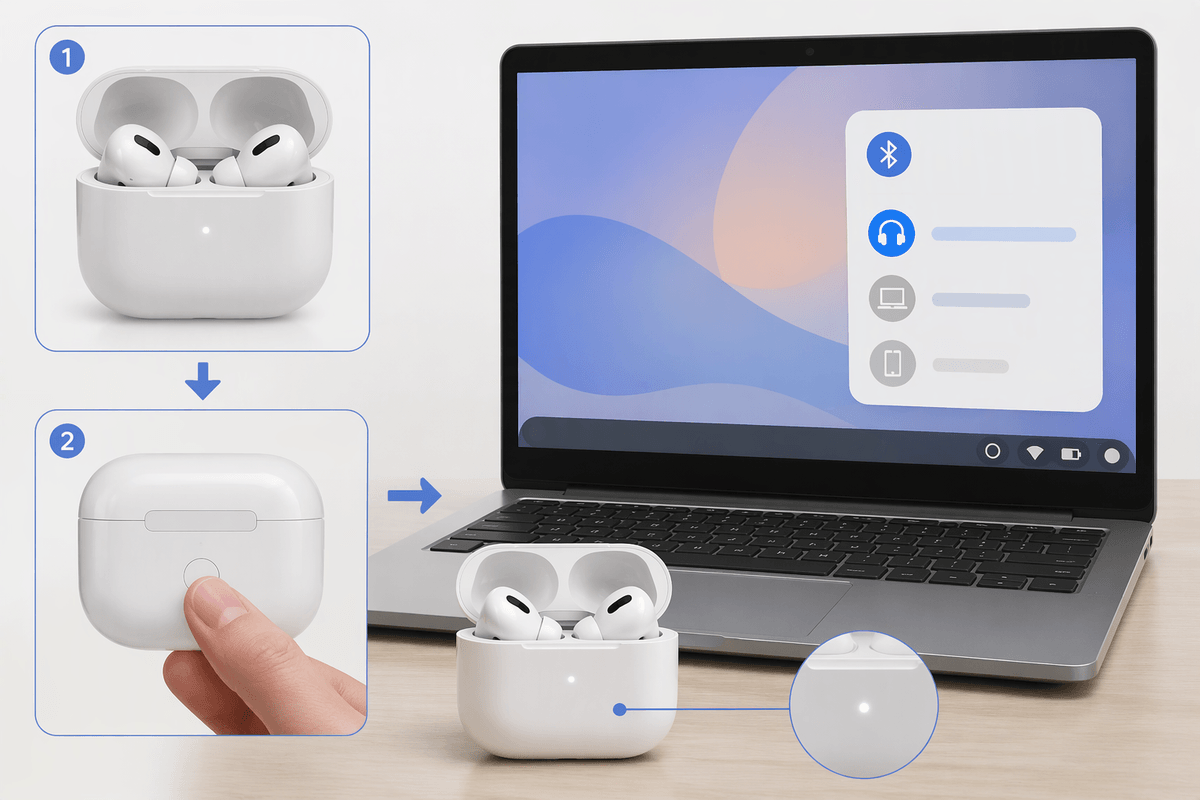
With Bluetooth enabled and the AirPods’ status light flashing white, open the Chromebook’s Quick Settings by selecting the status area in the lower-right corner. Select the Bluetooth icon or the arrow beside it to view available devices. Wait a few seconds for the AirPods to appear in the list. They may be labeled “AirPods,” “AirPods Pro,” or a customized name.
Select the AirPods’ name, then wait while ChromeOS completes the connection. The status should change to indicate that the earbuds are connected. You can close the charging case after pairing, but keep the AirPods nearby until the connection is confirmed. If ChromeOS displays a confirmation prompt, approve it before testing sound.
If the AirPods do not appear, place them back in the case, close the lid briefly, reopen it, and hold the setup button again until the light flashes white. Then turn Bluetooth off and back on from Quick Settings and search again. AirPods that are still connected to another device may remain hidden from the Chromebook, so disable Bluetooth on nearby phones, tablets, or computers. If the AirPods appear but pairing fails, select them, choose the option to forget or remove the device if available, and repeat the setup process from the beginning.
Select AirPods for Audio and Reconnect Later
After pairing, confirm that ChromeOS is using the AirPods for sound. Select the status area in the lower-right corner, then select the audio controls or the arrow beside the volume slider. Under the output devices, choose the connected AirPods rather than the Chromebook’s built-in speakers. Play a short video or audio clip to verify that sound is reaching the earbuds. For calls or online classes, also check the app’s microphone and speaker settings, since some services allow separate audio selections.
To reconnect the AirPods later, turn on Bluetooth, open the charging case, and take out the earbuds. ChromeOS will often reconnect automatically if the AirPods were previously paired and are not connected to another device. If they do not reconnect, open Quick Settings, select Bluetooth, and choose the AirPods from the saved-device list. Keep the case nearby while connecting. When switching between a Chromebook and an iPhone or Mac, disconnect the AirPods from the other device first if ChromeOS cannot claim the connection.
Fix Common AirPods Connection Problems
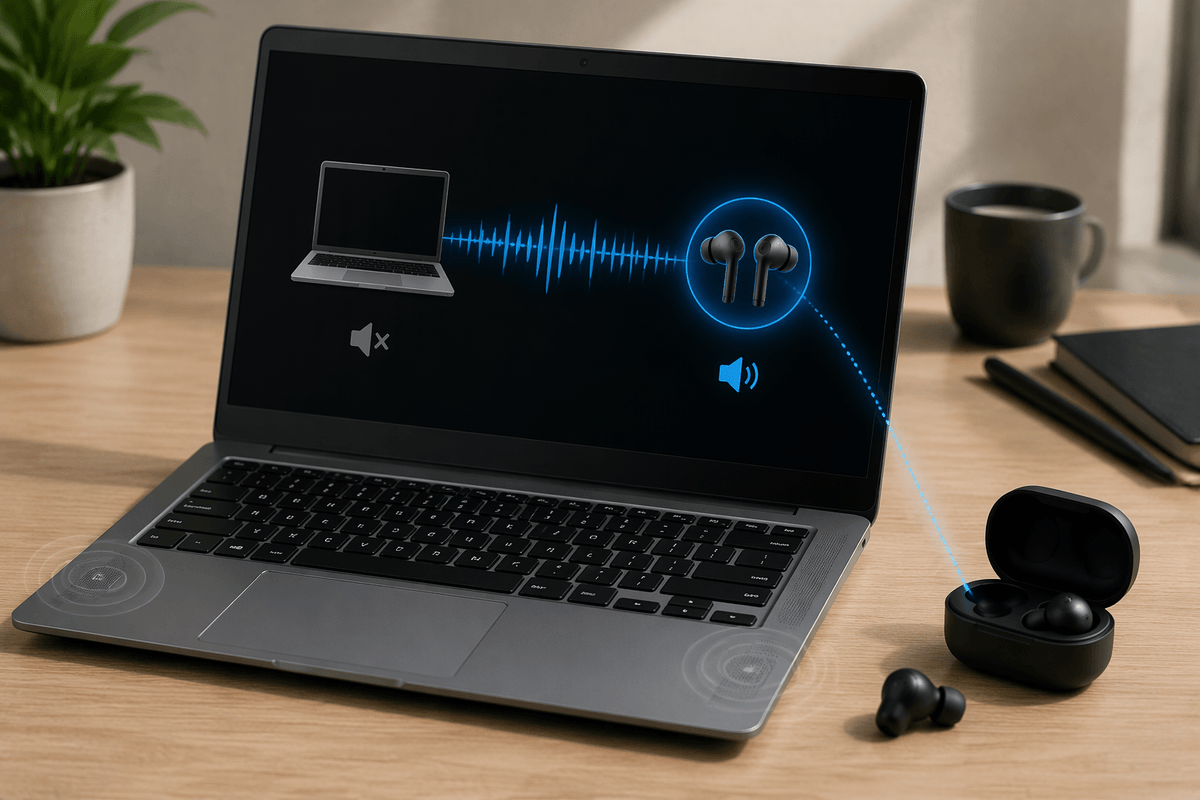
When AirPods connect but produce no sound, check the Chromebook’s output device before repairing the Bluetooth connection. Open Quick Settings and select the audio controls, then choose the AirPods instead of the built-in speakers. If sound works in one app but not another, review that app’s speaker and microphone settings as well. For an online class or call, confirm that the AirPods are selected for both input and output, if the service provides separate choices.
If the AirPods keep disconnecting, move the Chromebook closer and remove possible interference from other Bluetooth devices. Low battery can also cause unstable behavior, so charge the AirPods and their case before trying again. Nearby phones, tablets, or Macs may take control of the earbuds automatically; turn off Bluetooth on those devices temporarily, or disconnect the AirPods from them before reconnecting to the Chromebook.
For a connection that remains unreliable, remove the saved pairing from ChromeOS. Open Bluetooth settings, select the AirPods, and choose Forget, Remove, or the equivalent option. Place the earbuds in the case, close and reopen the lid, then hold the setup button until the light flashes white. Restarting the Chromebook can also clear a temporary Bluetooth fault. If the AirPods fail with multiple devices, the issue may involve the earbuds or case rather than ChromeOS.
Know Which AirPods Features Work on ChromeOS
AirPods generally work on ChromeOS as standard Bluetooth earbuds. You can use them for music, videos, podcasts, calls, and online classes, with the Chromebook sending audio to the earbuds and using their microphone when an app supports Bluetooth input. Basic controls, such as play, pause, or volume adjustment, may work, but the exact response can vary by AirPods model and Chromebook.
Apple-specific features are more limited. Automatic switching between Apple devices, Siri, battery details in Apple’s usual interface, and some personalized controls may not be available through ChromeOS. Noise cancellation and transparency modes may still be adjustable from the AirPods’ built-in controls on supported models, but ChromeOS does not provide the same settings found on an iPhone or Mac. For reliable listening, prioritize a stable connection and confirm the correct speaker and microphone settings before a call or class.
A Simple Way to Keep AirPods Connected
The easiest way to keep AirPods connected to a Chromebook is to use the same routine each time: charge the earbuds, keep Bluetooth enabled, and disconnect them from nearby Apple devices before opening the Chromebook’s Bluetooth menu. Store the AirPods in the Chromebook’s saved-device list rather than removing them after each use. When finished, place them back in the case so they do not remain connected unexpectedly.
For calls or classes, connect a few minutes early and test both sound and microphone. If the connection becomes unreliable, toggle Bluetooth off and on before deleting the pairing. This quick reset often restores the connection without requiring the AirPods to be paired again.