Why Bitwarden Simplifies Account Management
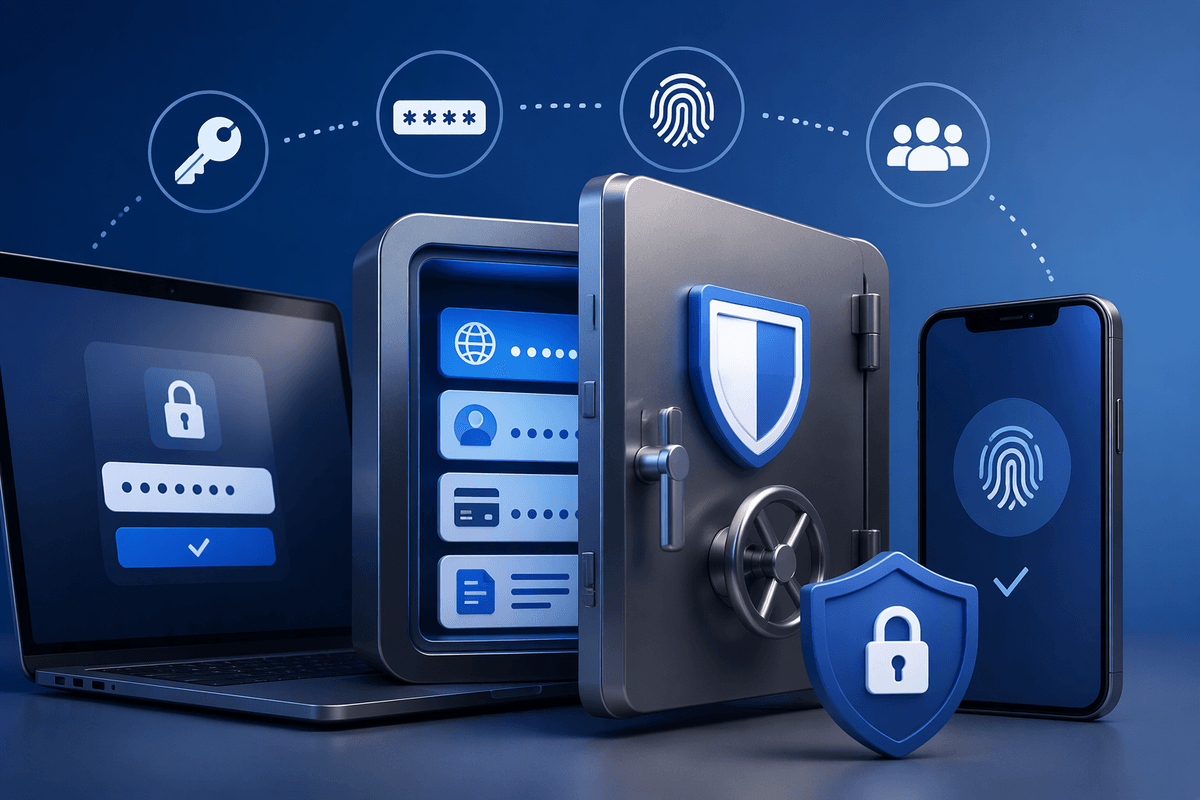
Bitwarden simplifies account management by replacing scattered credentials and repeated manual entry with one organized system. Logins, secure notes, payment details, and other sensitive items can be stored in a central vault and accessed through browser extensions, desktop apps, and mobile devices. Autofill handles routine sign-ins, while the password generator makes replacing weak or reused passwords less tedious. Bitwarden also supports passkeys and two-factor authentication, adding stronger sign-in options without requiring a separate process for every account. For households and teams, organization collections provide controlled access to shared credentials. The result is less searching, fewer mistakes, and a more consistent way to manage accounts.
Keep Logins in One Secure Vault
The vault works best when it becomes the default location for every login rather than a backup for only the most important accounts. Save each credential as soon as an account is created or updated, including the website address, username, password, and any useful notes. Bitwarden can also store secure notes, identity details, and payment information, so related information is available without keeping sensitive data in email, spreadsheets, or browser notes.
Organization matters once the vault contains dozens or hundreds of items. Use clear names, folders, and consistent website addresses so entries are easy to recognize and retrieve. Search is useful for locating a specific account, while folders can separate areas such as banking, work, shopping, or household services. Avoid creating duplicate entries when an existing item can be updated; duplicates make it harder to know which password is current. Because the vault is available across supported devices, changes made on one device can be carried into the next sign-in elsewhere. A short cleanup of old, duplicate, or unused entries keeps the vault dependable and makes autofill more accurate.
Autofill and Generate Strong Passwords
Autofill removes much of the routine work involved in signing in. After a login is saved, the Bitwarden browser extension or mobile app can identify the matching vault item and fill the username and password, reducing typing errors and avoiding repeated searches through the vault. Accuracy depends on using the correct website address in the item, particularly for services with separate domains for regional sites, administration portals, or single sign-on pages. When several matching entries appear, clear item names and updated website details make the right choice easier.
The password generator is most useful when creating a new account or replacing a weak, reused, or exposed password. Generate a unique password directly in Bitwarden, then save it to the matching login before leaving the registration or password-change page. Adjust the length and character settings when a site imposes restrictions, but avoid weakening the password more than necessary. For accounts that require memorable passphrases, a generated sequence of unrelated words may be easier to handle while still avoiding predictable personal information.
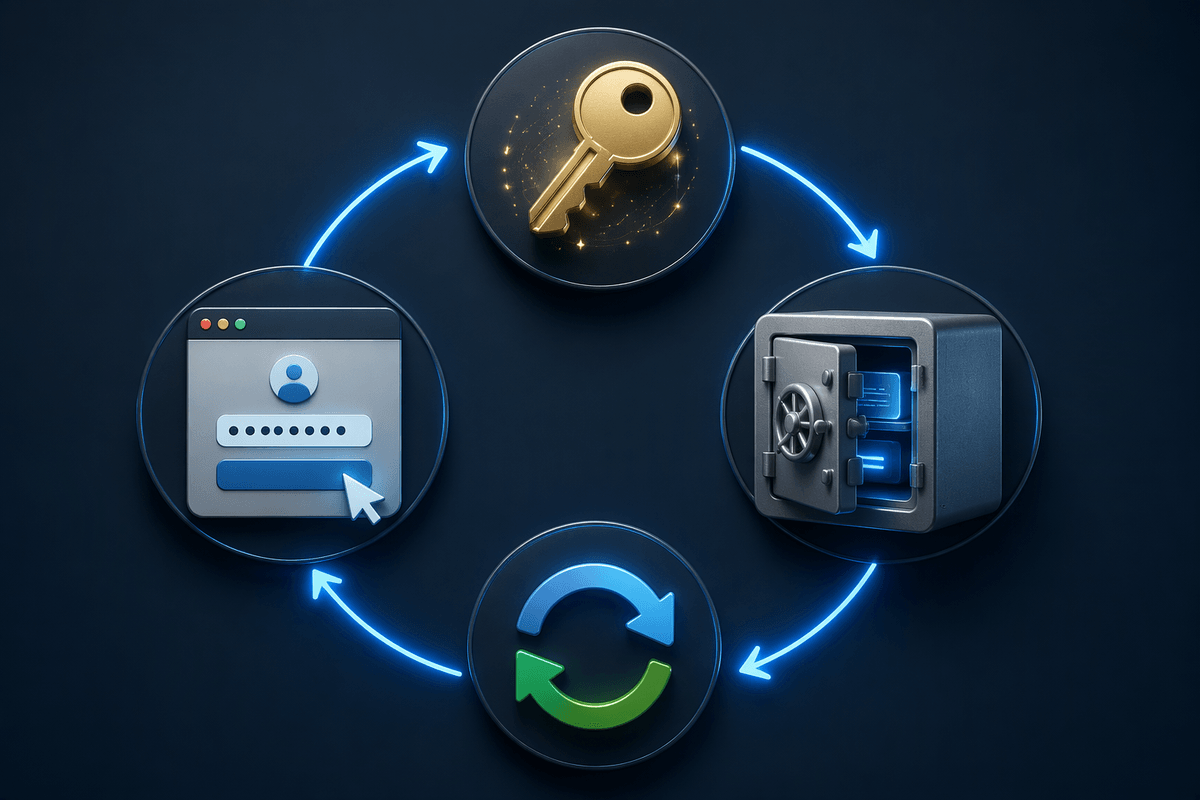
A dependable workflow is simple: generate, save, autofill, and update the vault immediately when credentials change. That keeps the stored item aligned with the account and prevents the common problem of knowing a password was changed but not remembering where the current version was recorded.
Use Passkeys and Two-Factor Authentication
Passkeys can reduce reliance on passwords for supported services by using device-based authentication, such as a fingerprint, face scan, or device PIN. When Bitwarden supports storing or using a passkey for a particular account, save it with the correct login entry so the credential remains associated with the service it protects. Passkeys are especially useful for frequently accessed accounts because they reduce typing and make phishing-resistant sign-in possible without creating another password to remember.
Two-factor authentication adds a second check after the password. Bitwarden can help store and retrieve time-based authentication codes for accounts that support them, keeping the login and verification code together during sign-in. This is convenient, but protect the vault carefully because concentrating both factors in one place creates a trade-off between efficiency and separation. For highly sensitive accounts, a separate authenticator or hardware security key may provide stronger independence. Whichever method is chosen, record recovery codes in a secure location and test account recovery before an emergency occurs. The practical goal is to enable stronger sign-in methods as accounts support them, without creating a separate, disorganized process.
Share Access Without Sharing Passwords

Shared accounts are easier to manage when access is assigned through Bitwarden organizations and collections rather than by sending passwords through email or chat. Add the login to an appropriate collection, then give household members or teammates access according to their role. Each person can use the shared item from their own Bitwarden account, while the credential remains stored in one controlled location. This avoids multiple copies of the same password and reduces the risk of an old version continuing to circulate.
Centralized sharing also makes changes easier to manage. If a password is updated, edit the shared vault item instead of notifying everyone individually. When someone no longer needs access, remove their permission or access to the collection rather than changing every unrelated account. Use separate collections for different groups, such as household bills, client systems, or internal tools, and grant only the access required. For one-time or limited information sharing, Bitwarden Send may be more suitable than adding someone to a shared collection. The best setup matches access to responsibility while keeping ownership and updates clear.
Build a Practical Bitwarden Workflow
A practical Bitwarden workflow should reduce decisions, not add another layer of maintenance. Start with capture: whenever an account is created, changed, or shared, save the updated login immediately in the correct vault location. Use the generator for new passwords, confirm the website address, and remove obsolete duplicates rather than leaving several possible entries behind.
During everyday use, let autofill handle routine sign-ins and use search when the matching item is unclear. Keep item names consistent, especially when one service has separate personal, work, billing, or administration accounts. On mobile devices, make sure the Bitwarden app and autofill integration are configured before they are needed; otherwise, users often return to copying passwords manually. Review the vault periodically for outdated entries, unused accounts, and credentials that should be replaced.
Shared access needs the same discipline. Store team or household credentials in the appropriate organization collection, assign access by role, and update the shared item when the password changes. For important accounts, combine a strong generated password with a passkey or two-factor authentication where supported, while keeping recovery information accessible through a deliberate backup plan. The most efficient system is not the one with the most features enabled. It is the one that makes saving, signing in, updating, and sharing follow the same predictable pattern every time.
A Simpler System Depends on Good Setup
Bitwarden reduces account-management effort only when it is set up as the default system rather than used occasionally. Save credentials promptly, keep website addresses and item names accurate, remove duplicates, and configure browser and mobile autofill before routine sign-ins depend on them. Those small decisions determine whether the vault feels dependable or becomes another place to search.
The most useful features work together: the vault stores information, the generator creates stronger credentials, autofill removes repetitive entry, passkeys and two-factor authentication improve protection, and collections control shared access. Start with the features that address the greatest daily friction, then refine the setup as needs change. Good organization turns Bitwarden from passive storage into a practical account-management workflow.