Why Yuka May Not Recognize the Barcode
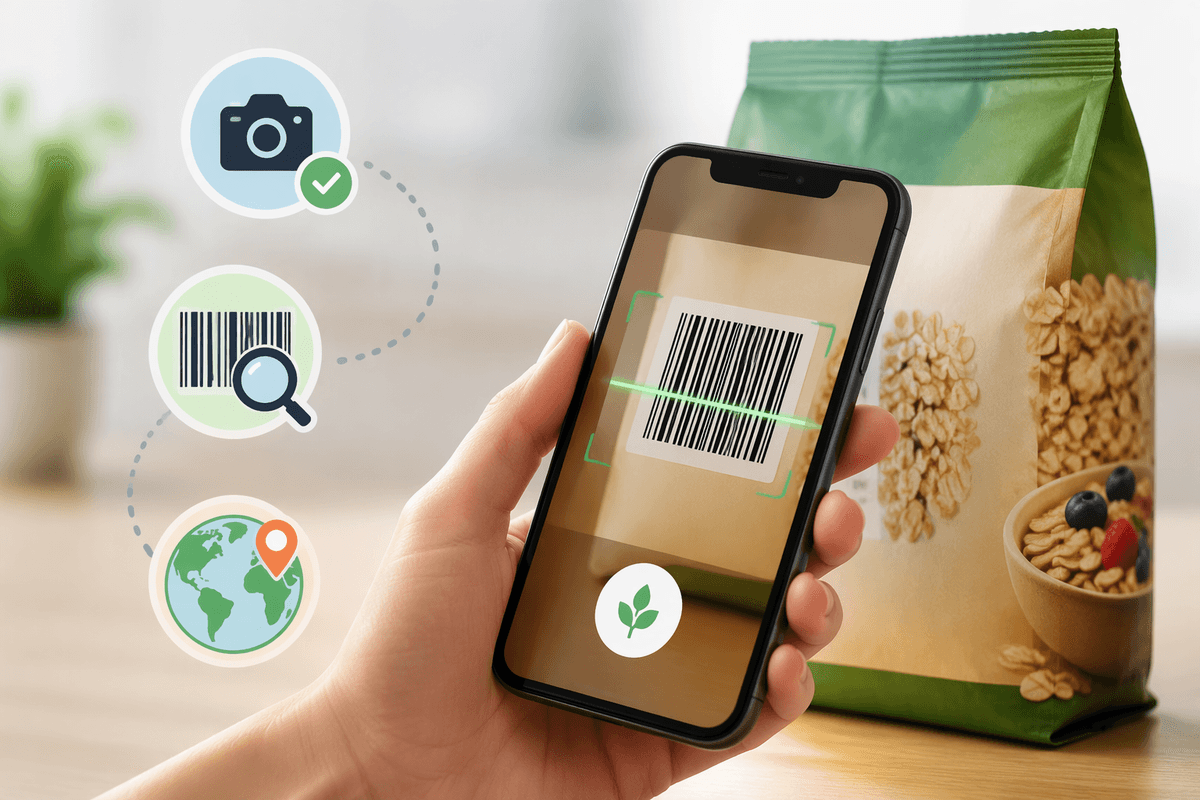
When Yuka does not recognize a barcode, the problem is not always the barcode itself. The camera may be struggling with glare, curved packaging, low contrast, or a damaged label. Holding the phone too close, moving while scanning, or scanning in poor light can also prevent the app from reading the code correctly.
A successful scan also depends on Yuka having the exact product in its database. New products, regional versions, limited editions, cosmetics, and different package sizes may use barcodes the app has not yet linked to a product record. In some cases, the barcode belongs to a different country or variant, even when the packaging looks nearly identical. Checking the code, product details, and scan conditions helps identify the cause before assuming the app is malfunctioning.
Check the Barcode Before Blaming the App
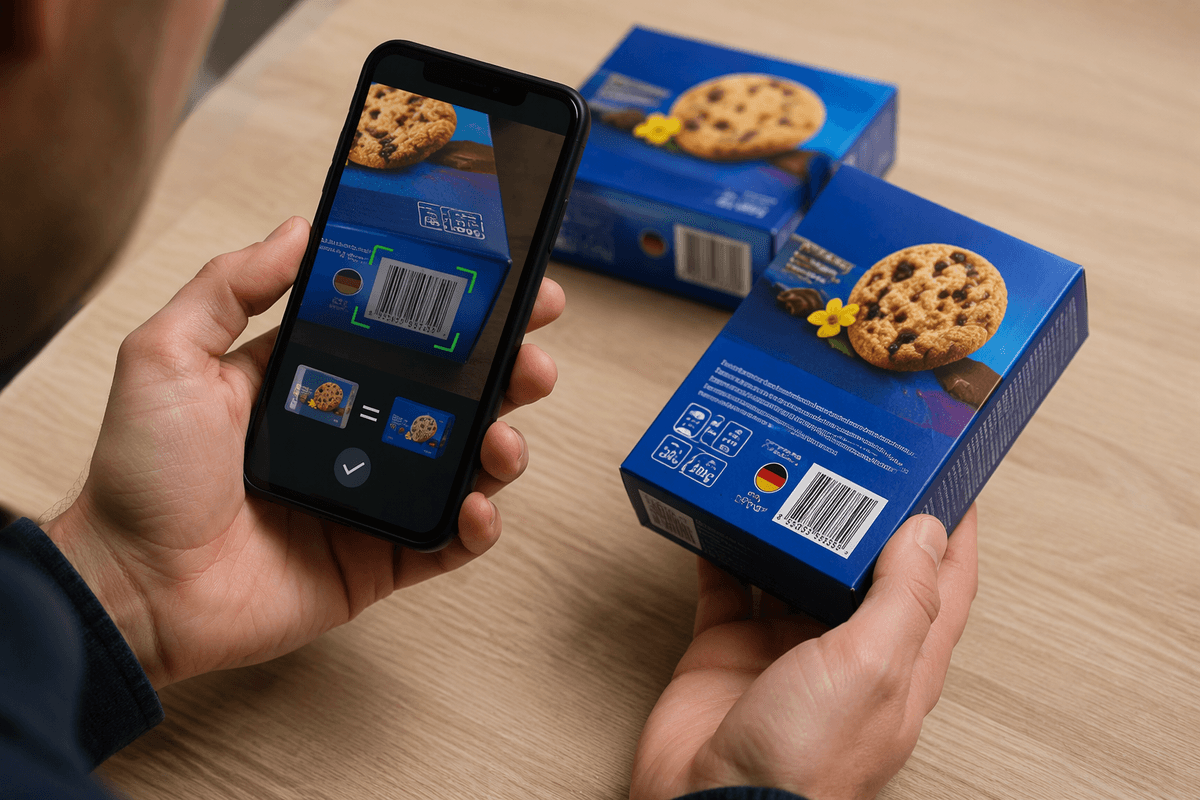
Before changing settings or reinstalling Yuka, look closely at the barcode on the package. Make sure the camera is aimed at the black vertical lines rather than a nearby symbol, recycling mark, or nutrition label. Wipe the lens and barcode, then try scanning under even lighting without a strong reflection. Curved bottles, shiny wrappers, and crumpled labels can distort the lines enough to cause repeated failures. Hold the phone steady a short distance away and allow the app a moment to focus.
If the code still will not scan, check whether every digit is visible and undamaged. A torn corner, faded ink, or sticker covering part of the code may make it unreadable. You can also compare the barcode with the product information: the brand, flavor, size, and country of sale should match the item in your hand. If another identical package scans successfully, the first barcode may be damaged. If neither works, the issue is more likely a missing product record than a camera problem.
Your Product May Not Be in Yuka’s Database
Sometimes the barcode scans correctly, but Yuka still cannot identify the item because no matching product record exists yet. This is common with newly released products, store-brand items, regional products, and limited editions. Cosmetics and personal-care products can be affected more often because brands may change formulas, packaging, or package sizes without making the difference obvious at a glance.
A barcode identifies a specific product version, not simply the brand. A 12-ounce package may have a different code from the same product in a 24-ounce package, and a formula sold in the United States may differ from one sold in Canada or Europe. Even small changes, such as a new flavor, scent, or ingredient list, can require a separate database entry. If the packaging and barcode are clear but Yuka returns no result, the app may be working normally; it may simply lack that exact record. Check the product name, size, and country before trying the scan again, then use manual search or submit the item if those details match.
Country, Package Size, and Variant Differences Matter
Two packages can look almost identical and still require different barcode records. A product made for the United States may have a different code from the same brand’s version sold in Canada, France, or another market. Ingredient rules, labeling language, serving sizes, and formulas can vary by country, so Yuka may not connect one regional code to another product entry.
Package size and product variant matter just as much. A 16-ounce cereal box, a single-serve version, and a family-size package may each have its own barcode. The same applies to different flavors, scents, formulas, and promotional packaging. Compare the item in your hand with any result Yuka displays, checking the exact product name, size, variant, and country of sale. A close match is not necessarily the correct match, especially for cosmetics and personal-care products where ingredients may change between versions.
If the details do not match, do not rely on a similar listing to judge the product. Search using the full product name or submit the exact item instead. This takes more time, but it avoids applying the wrong rating or ingredient information to the package you actually purchased.
Try These Scanning Fixes First
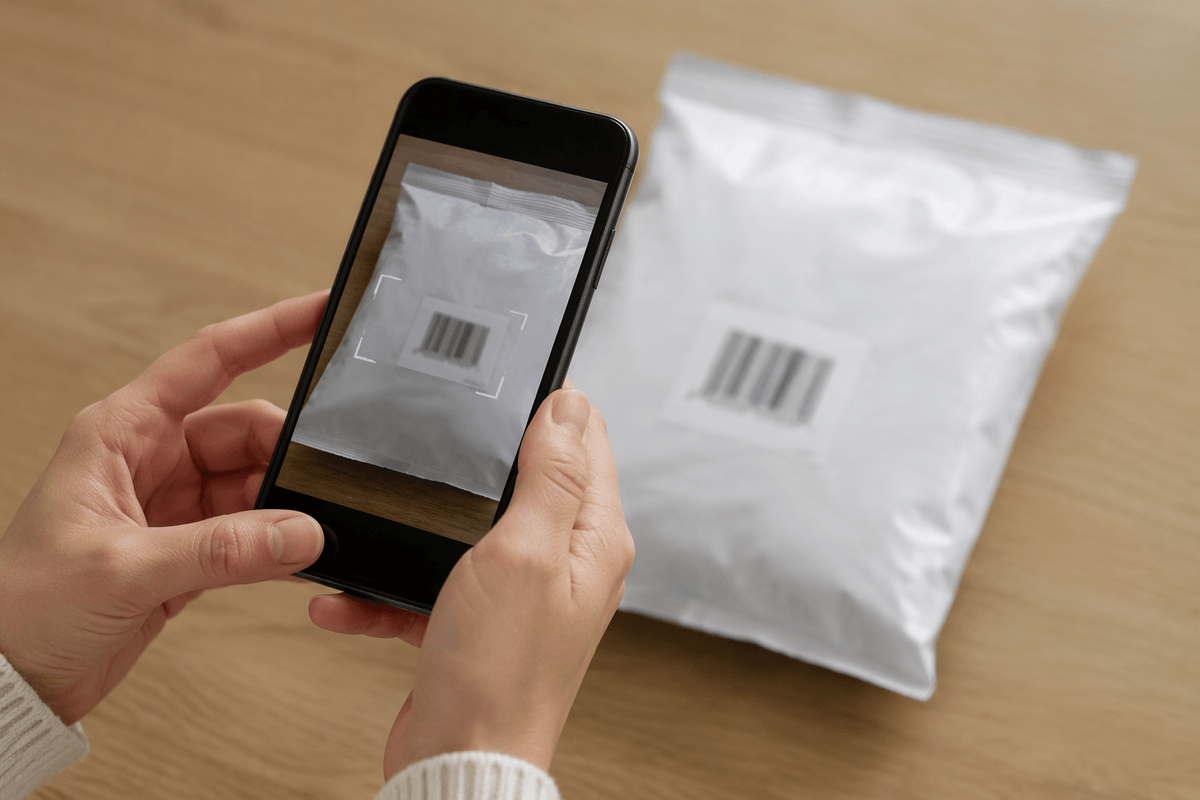
Once you have confirmed that the barcode belongs to the exact product, repeat the scan under better conditions. Clean the phone camera and the barcode, then move the phone slightly farther away if the code appears blurry. Keep the package flat when possible, avoid direct glare, and use steady lighting rather than a bright flash reflected off plastic or foil. On curved bottles, rotate the container slowly so the full barcode faces the camera. Give Yuka a few seconds to focus before moving the phone.
If scanning still fails, close and reopen the app, then check that Yuka has permission to use the camera. Updating the app may help when the camera screen behaves unusually, although an update will not add a product that is missing from the database. Try scanning another known product to separate a camera or app issue from a barcode-specific problem. If other items scan normally, record the product’s exact name, size, flavor or scent, and country of sale. That information will make a manual search or product submission more useful than repeatedly scanning the same damaged or unlisted code.
When Manual Search or Product Submission Helps
Manual search is useful when the barcode is clear but Yuka cannot find a matching record. Enter the product’s full name, brand, and, when relevant, flavor, scent, or product type. Review the results carefully rather than choosing the closest-looking package. Confirm the size, variant, country of sale, and ingredient list before relying on the rating. Search can also help when the barcode is partly damaged or hidden by a store sticker, but it may not produce an exact match.
If no accurate result appears, submit the product through Yuka’s product-addition process, if that option is available in your app. Include clear photos of the barcode, front label, and ingredient list, along with the product details requested. Good lighting and readable images reduce delays and help distinguish similar versions. Submission is not an instant fix: the item may need review, and the resulting record may not appear immediately. Until then, avoid treating a similar listing as the same product. Use the package’s own ingredient panel and other reliable information instead.
What a Failed Scan Does—and Does Not—Mean
A failed scan does not automatically mean the barcode is invalid, the product is unsafe, or Yuka is malfunctioning. It may reflect glare, damage, an unlisted product, or a mismatch between the package and an existing database entry. The result only tells you that Yuka could not connect that scan to a confirmed record at that moment.
Use the failure as a prompt to verify the package details, try one careful rescan, and test another product to check whether the app’s camera is working. If the item remains unidentified, manual search or product submission is usually more useful than repeated attempts. Until an exact record appears, base decisions on the product’s ingredient list and label rather than a similar listing.