
Where Word Workflows Usually Slow Down
Most Word work slows down in small, repeated actions: moving the cursor to select text, switching between mouse and keyboard, correcting formatting, or searching through a long document for one heading. Each action takes only a few seconds, but the interruptions add up during a report, assignment, or set of routine forms.
Inconsistent formatting creates another delay. Manually changing fonts, spacing, headings, and lists may fix one paragraph while leaving the rest of the document uneven. The practical solution is not to memorize every Word feature. It is to identify the tasks you repeat most often, then replace them with a shortcut, a built-in command, or a reusable formatting method. That shift reduces both effort and mistakes.
Start Faster with Navigation and Selection Shortcuts
When a document is more than a page or two, dragging the scroll bar and selecting text with the mouse quickly becomes inefficient. Use keyboard shortcuts to move with more control: Ctrl+Right Arrow and Ctrl+Left Arrow move one word at a time, while Ctrl+Down Arrow and Ctrl+Up Arrow move between paragraphs. To select as you go, hold Shift with those same arrow commands. Ctrl+Shift+Right Arrow selects the next word, and Shift+End selects from the cursor to the end of the line.
For larger jumps, Ctrl+Home takes you to the beginning of the document and Ctrl+End to the end. Press Ctrl+F to find a word or phrase instead of scanning page by page, then use the search results to move directly to each match. These shortcuts require a short adjustment period, especially if you usually rely on the mouse. Start with the commands you use most, such as word selection and Find, and practice them in everyday documents until they become automatic.
Edit and Rewrite Without Breaking Your Flow
Once the cursor is in the right place, editing becomes faster when common changes stay on the keyboard. Use Ctrl+Backspace to delete the previous word and Ctrl+Delete to remove the next one, rather than pressing Backspace repeatedly. If a change makes the wording worse, Ctrl+Z reverses it immediately; Ctrl+Y restores an action you removed by mistake. These commands are especially useful when tightening a sentence or correcting several small errors in a paragraph.
Word also reduces repetitive rewriting through Find and Replace. Press Ctrl+H to change a repeated name, term, spelling error, or formatting detail throughout a document. Use Replace one item at a time when the wording may have different meanings, and use Replace All only after checking the search term carefully. For longer passages, select the text and press Ctrl+X, Ctrl+C, or Ctrl+V to move, copy, or reuse it without retyping. Keep Ctrl+S part of the routine, since frequent saving protects edits while you experiment with revisions.
Use Styles Instead of Formatting One Line at a Time
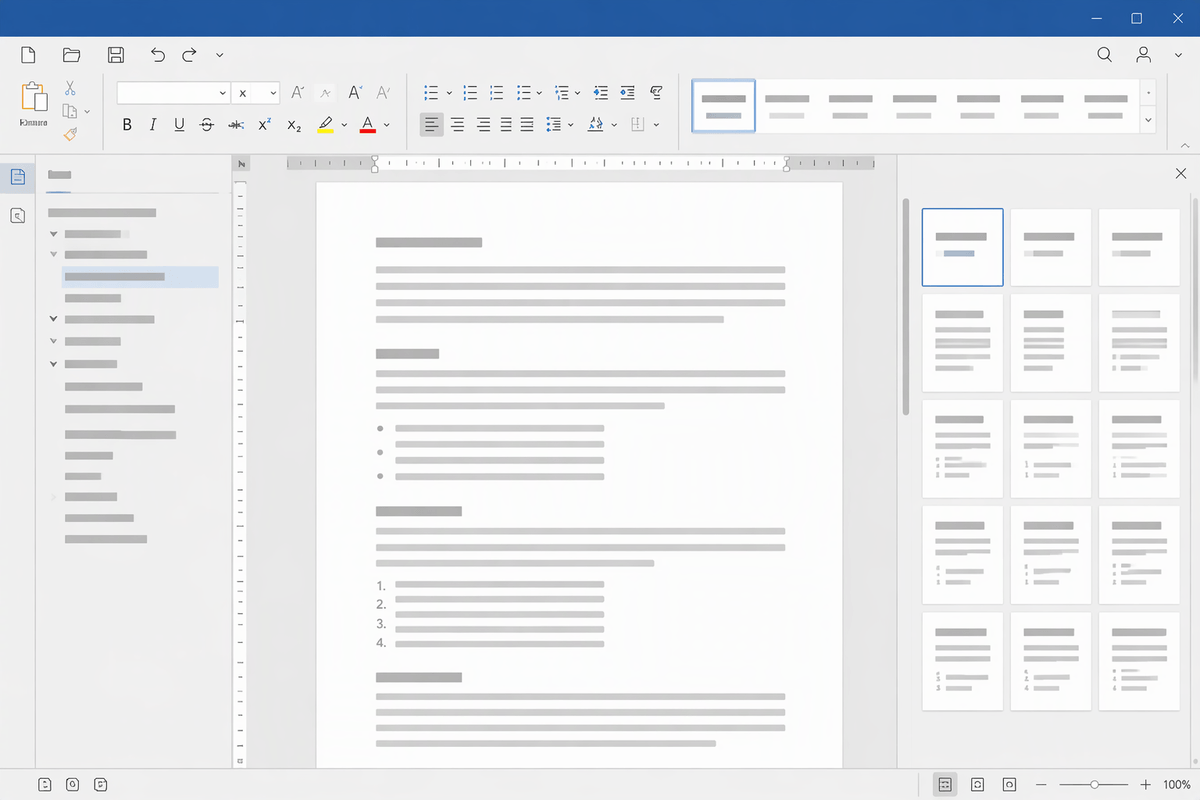
Formatting each heading, paragraph, and list separately may seem manageable until a document grows to several pages. A faster approach is to apply Word’s built-in styles. Select a heading and choose Heading 1, Heading 2, or another appropriate style from the Styles gallery. You can also use Ctrl+Alt+1 for Heading 1, Ctrl+Alt+2 for Heading 2, and Ctrl+Shift+N to return to Normal style. Styles keep font, spacing, and paragraph settings consistent, and they make the Navigation pane and automatic table of contents work more reliably.
Styles are most useful when the document may change later. If you decide to alter all main headings, modify the style once instead of editing every heading individually. Direct formatting still has a place for small exceptions, but too many manual overrides can make a document difficult to maintain. When formatting becomes uneven, use Ctrl+Spacebar to remove character formatting or Ctrl+Q to clear paragraph formatting, then reapply the correct style. The initial setup takes a little longer, but it prevents repeated cleanup as the document develops.
Make Long Documents Easier to Build and Read
Long documents become easier to manage when their structure is visible. Use the Navigation pane to move between headings instead of scrolling through page after page. If a section belongs on a new page, insert a manual page break with Ctrl+Enter rather than pressing Enter repeatedly. Extra blank lines shift when earlier text changes, while a page break keeps the section anchored. For a table of contents, apply heading styles first, then use Word’s automatic table of contents feature. Update it after major edits so page numbers and section names stay accurate.
Readability also improves when repeated information has a consistent home. Add headers, footers, page numbers, and descriptive captions where they help readers identify the document or find a table and figure. Use Ctrl+Enter sparingly, since too many forced breaks can create awkward blank space when content is revised. Before sharing or printing, check paragraph spacing, table alignment, widows and orphans, and headings stranded at the bottom of a page. Word’s preview can reveal layout problems that are easy to miss while editing.
Review, Collaborate, and Automate Routine Work

Reviewing is faster when changes and questions stay visible in the document. Turn on Track Changes with Ctrl+Shift+E before revising shared work, and add a comment with Ctrl+Alt+M when an explanation or decision is needed. Use the Reviewing pane to move through edits instead of searching for colored marks, then accept or reject changes individually. Before sending a final version, check that tracked revisions and comments are hidden or removed if the recipient should see a clean copy.
For repeated content, save time with AutoCorrect, Quick Parts, or reusable templates. These tools can insert a standard signature, project description, disclaimer, or frequently used table without repeated copying. Word’s Compare feature can also identify differences between two versions when several files have circulated. Automation has limits: an incorrect AutoCorrect entry or outdated template can spread mistakes quickly, so review reusable items occasionally. Start with one repeated task, such as inserting a standard response, and make it reliable before adding more shortcuts or automated building blocks.
Build a Shortcut-First Word Routine
A shortcut-first routine works best when it follows the way you already work. Choose a few commands for each stage: use Ctrl+F to locate content, heading shortcuts to structure it, Ctrl+H for repeated corrections, and Ctrl+S throughout the process. Add styles, page breaks, comments, or templates when they solve a recurring problem rather than learning every feature at once.
Keep a short list of the shortcuts you forget, and practice one or two during real tasks until they become automatic. Review the finished document for formatting, layout, tracked changes, and reusable elements before sharing it. The goal is not to avoid the mouse completely. It is to reserve manual effort for decisions that require judgment, while Word handles predictable actions quickly and consistently.