What You Need Before You Begin
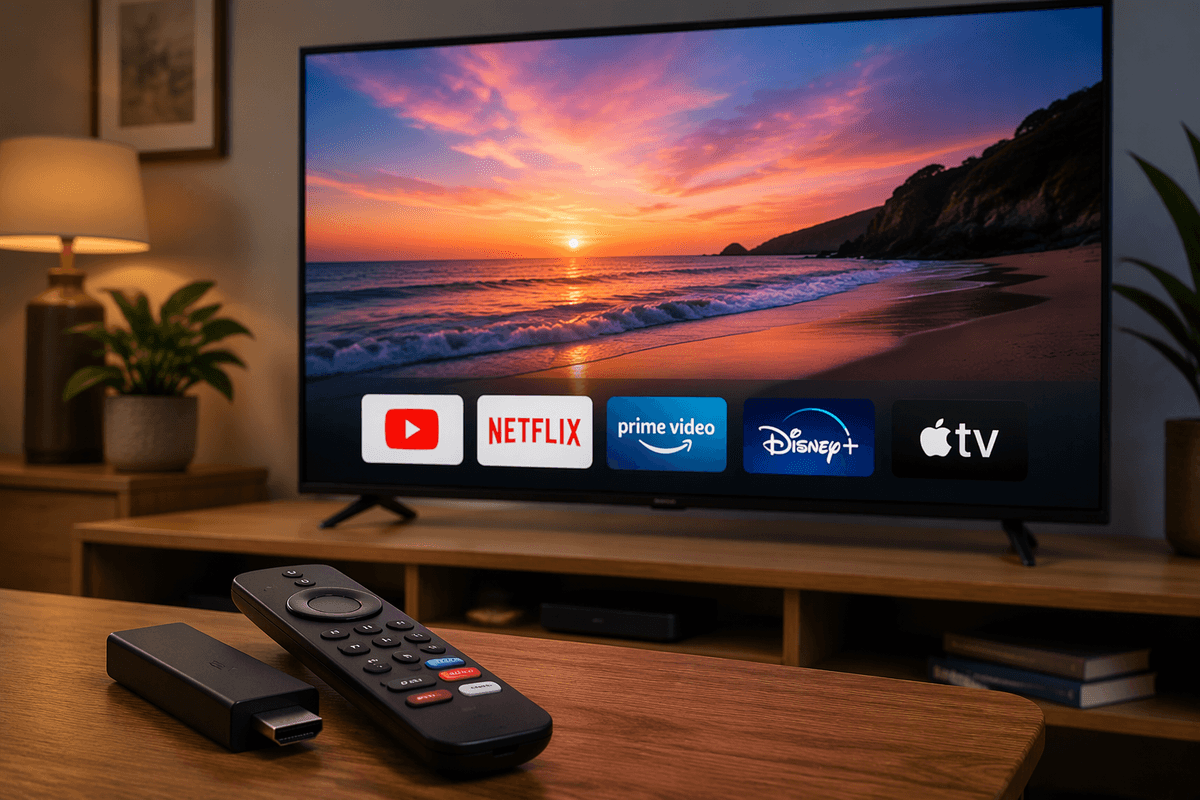
Before you begin, make sure your Roku is connected to a reliable internet connection and displays the Roku home screen. Keep the Roku remote nearby, since you will need it to search for and add the Prime Video channel. If the device has been unplugged for a while, allow it a few moments to reconnect and check for updates.
You will also need an Amazon account and its sign-in details. An active Prime membership or Prime Video subscription gives you access to included titles, while some movies and shows may require a separate rental, purchase, or subscription. Have access to the email address or phone number linked to your Amazon account, along with the password. If you use two-step verification, keep your phone available for the security code.
Check Your Roku for Compatibility
From the Roku home screen, open Settings and choose System, then About. Check the device name, model number, and Roku software version. This information helps identify an older player or Roku TV that may need an update before Prime Video appears or runs properly. If an update is available, install it and allow the Roku to restart before continuing.
Return to the home screen and look through Streaming Store or Streaming Channels for Prime Video. Channel availability can vary by Roku model, region, and software version. If you cannot find it, confirm that the Roku is connected to the internet, restart the device, and check for another system update. Very old Roku hardware may have limited channel support, and replacing it may be more practical than repeatedly troubleshooting it. Also check that your Amazon account is supported in your country, since the available Prime Video catalog and features can differ by location.
Find and Add Prime Video
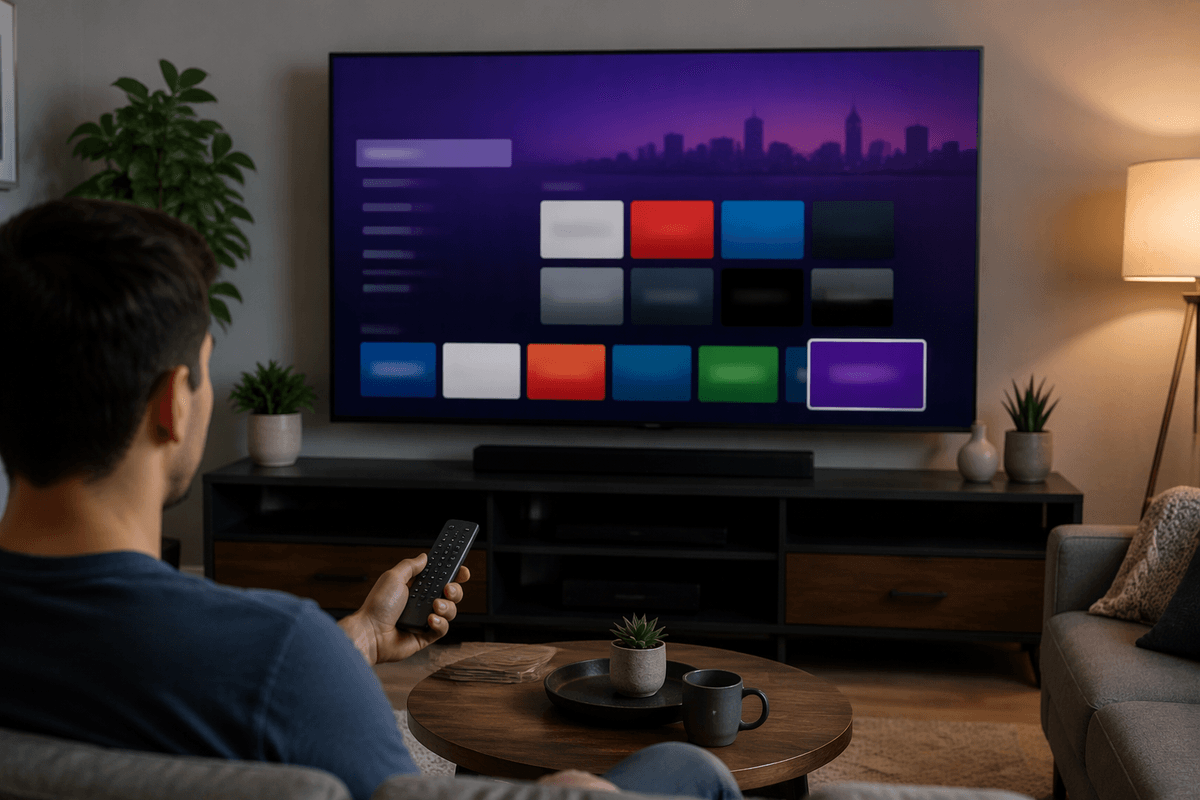
From the Roku home screen, open Streaming Store or Streaming Channels and select Search. Use the on-screen keyboard to enter “Prime Video,” then choose the official Prime Video channel from the results. Check the name carefully before adding it, especially if other apps or search suggestions appear. Select Add channel and wait for Roku to finish installing it. The channel may appear at the bottom of your home-screen app list, so scroll across the list if you do not see it immediately.
Open Prime Video and wait for the welcome screen to load. Choose the option to sign in rather than starting a new Amazon account if you already subscribe. Roku may display a short activation code and instructions for completing sign-in on another device, or it may let you enter your Amazon credentials directly with the remote. Keep the code visible until activation is complete. If the channel does not appear after installation, restart the Roku and check the home screen again. Avoid removing the channel during the first attempt, since installation can take longer on a slow connection.
Sign In and Activate Your Account
When Prime Video shows an activation code, use a phone or computer to open the Amazon activation page shown on the Roku screen. Sign in with the same Amazon account you plan to use on the Roku, then enter the code exactly as displayed. Select the option to register or activate the device and wait for confirmation. The Roku should refresh automatically and load the Prime Video home screen. Do not close the activation screen or generate a new code unless the first code expires.
If Roku asks you to enter your Amazon email address and password directly, type them carefully with the remote. Passwords are case-sensitive, and using the wrong Amazon account can make your Prime membership or purchased titles appear to be missing. Complete any two-step verification request, then allow a moment for your account information to load. If activation fails, check that the Roku and your phone or computer are connected to the internet, restart Prime Video, and try a newly generated code. Repeated failures may result from an incorrect account, an expired code, or temporary service problems rather than a fault with the Roku itself.
When Prime Video Will Not Open
If Prime Video will not open, start with the simplest checks. Press Home on the Roku remote, select another channel, and then open Prime Video again. If the app remains frozen, restart the Roku through Settings, System, Power, and System restart, or unplug it for about 30 seconds before reconnecting it. Confirm that other channels can stream, since a weak or interrupted internet connection can prevent Prime Video from loading even when the channel is installed correctly.
Check for updates by opening Settings, selecting System, and choosing Software update. Install any available update, then try Prime Video again. If the app opens but closes, freezes, or shows a repeated error, remove the channel, restart the Roku, and add Prime Video again from the channel store. Removing the channel may require you to sign in again, so keep your Amazon account details available. Also make sure your Roku has enough free storage and that the television is set to the correct input.
When other channels work but Prime Video alone fails, the problem may be temporary service trouble or an account issue. Wait a short time, then retry. If the problem continues, sign out and activate the channel again with the correct Amazon account.
Adjust Playback and Account Settings
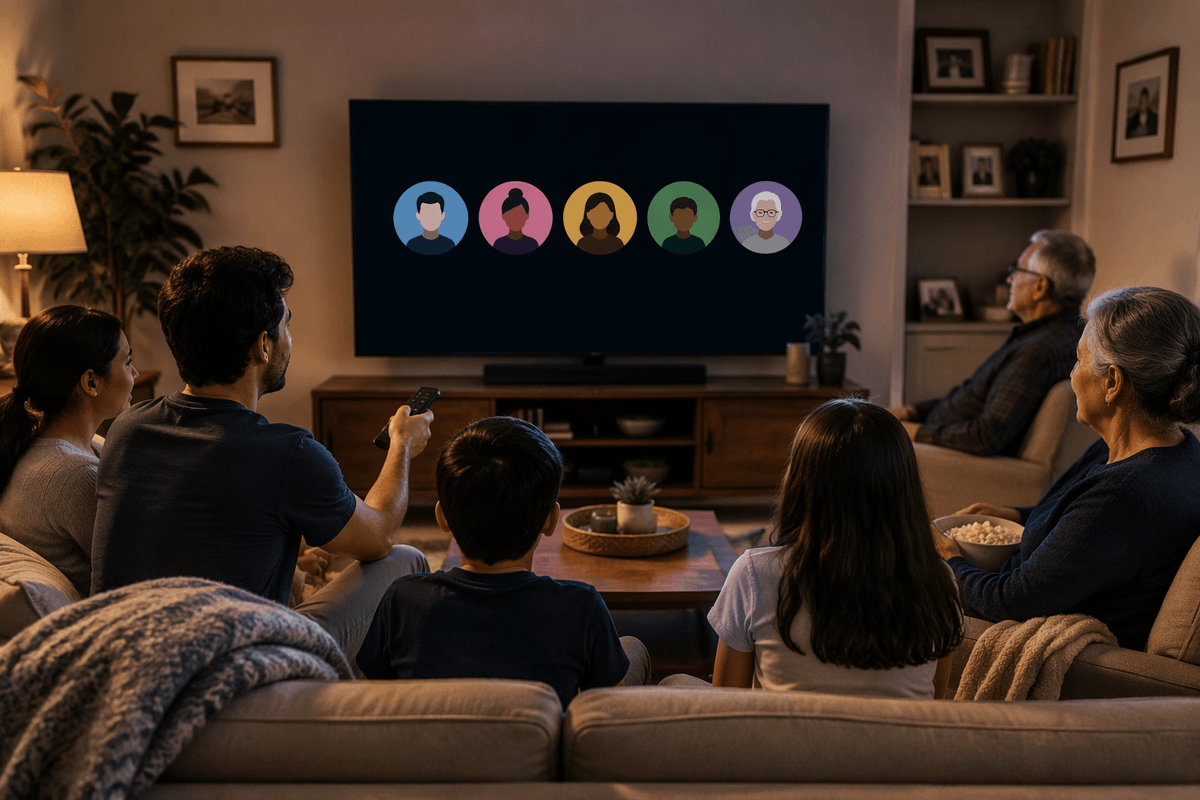
Once Prime Video opens normally, review the settings before you start watching. Choose a title and open the playback menu to adjust captions, audio language, or video quality when those options are available. Captions can help with unclear dialogue, while reducing video quality may prevent buffering on a slower connection. If several people use the Roku, check whether the correct Amazon profile is selected so recommendations and watch history stay separate.
Open the Prime Video account or settings area to manage profiles, parental controls, and sign-in details. Parental controls may require a PIN before restricted content can play, so record the PIN somewhere secure. You can also review which Amazon account is connected if purchased titles or Prime benefits seem to be missing. Keep in mind that some settings are controlled by Amazon rather than Roku, and menu names may differ slightly by device or app version. If a change does not take effect, close and reopen Prime Video, then restart the Roku before changing the setting again.
Finish Setup and Start Watching
With Prime Video installed, activated, and adjusted, choose a title from the home screen and press OK to begin playback. Use the remote’s pause, rewind, fast-forward, and playback controls as needed. If a title asks you to rent, buy, or subscribe, review the price before confirming, since not every item is included with Prime membership.
For a smoother experience, leave the Roku connected to a stable network and keep both the Roku software and Prime Video channel updated. If you finish setup but still cannot watch, repeat the basic checks: restart the Roku, confirm the correct Amazon account, and test another channel. Once those steps work, Prime Video is ready for regular viewing.