Start With the Connection Basics
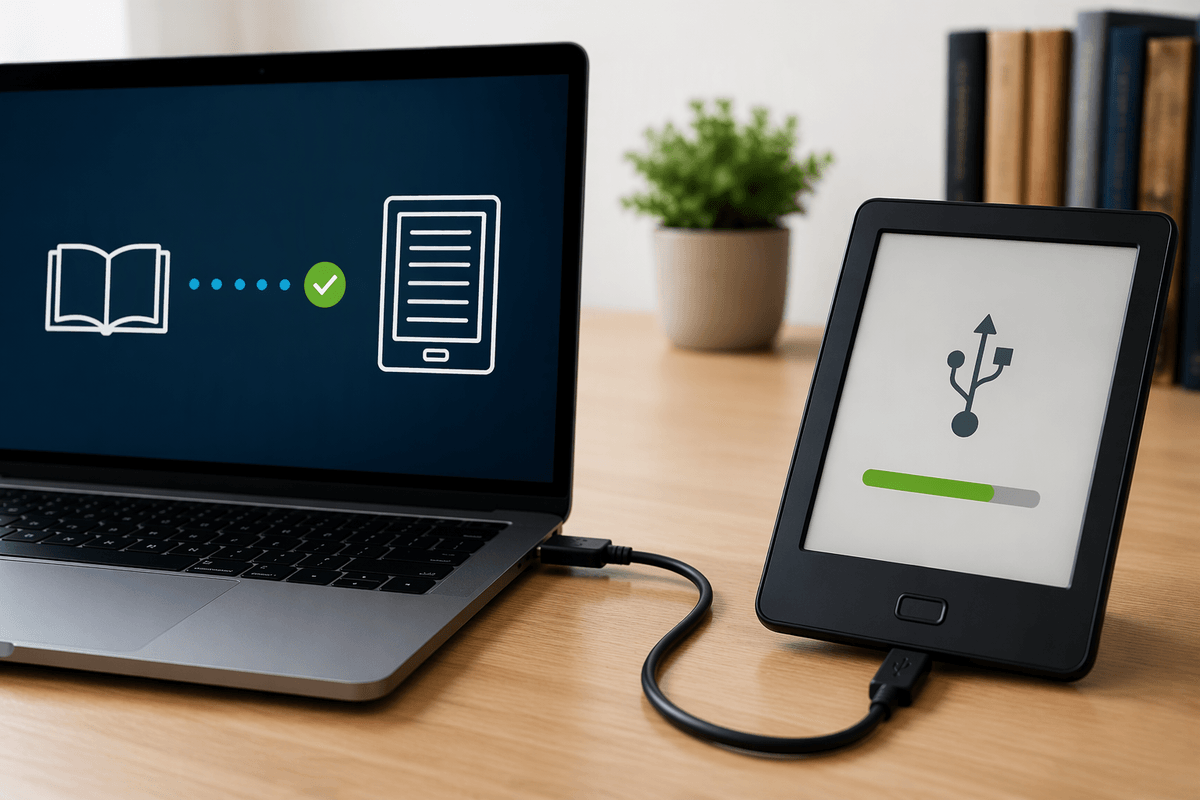
When Calibre does not detect an e-reader, start with the simplest possibility: the device may not be connected for data transfer. Unlock the reader, connect it with the USB cable, and watch for a prompt asking whether to allow file access or connect to a computer. Choose the option that enables data transfer, not charging only. Give Calibre a few seconds to respond before changing settings.
Also check whether the reader is actually charging and whether its storage appears on the computer. If neither happens, the problem is probably the cable, USB port, or device connection rather than Calibre itself. Avoid troubleshooting several variables at once. Confirm the basic connection first, then move through software and driver checks only after the computer can communicate with the reader.
Check Whether Your Computer Sees the Device
Once the reader is connected, check whether the operating system recognizes it before focusing on Calibre. On Windows, open File Explorer and look under “This PC” for a new drive or device. On macOS, check Finder’s sidebar and, if needed, the desktop for the reader’s storage. The exact name may vary, and some readers appear as a portable device rather than a normal disk. Open it only far enough to confirm that the computer can access its files.
If the reader does not appear anywhere, Calibre cannot detect it yet. Disconnect the cable, restart both the computer and e-reader, then reconnect them while the reader is unlocked. A device that appears briefly and disappears may indicate an unstable connection, insufficient power, or a driver problem. If the reader appears normally in the operating system but remains missing from Calibre, the basic connection is working and the problem is more likely related to Calibre’s device support or settings. Avoid deleting books or formatting the reader during this test; those actions do not repair recognition problems and can create unnecessary data loss.
Try a Different Cable, Port, or USB Mode
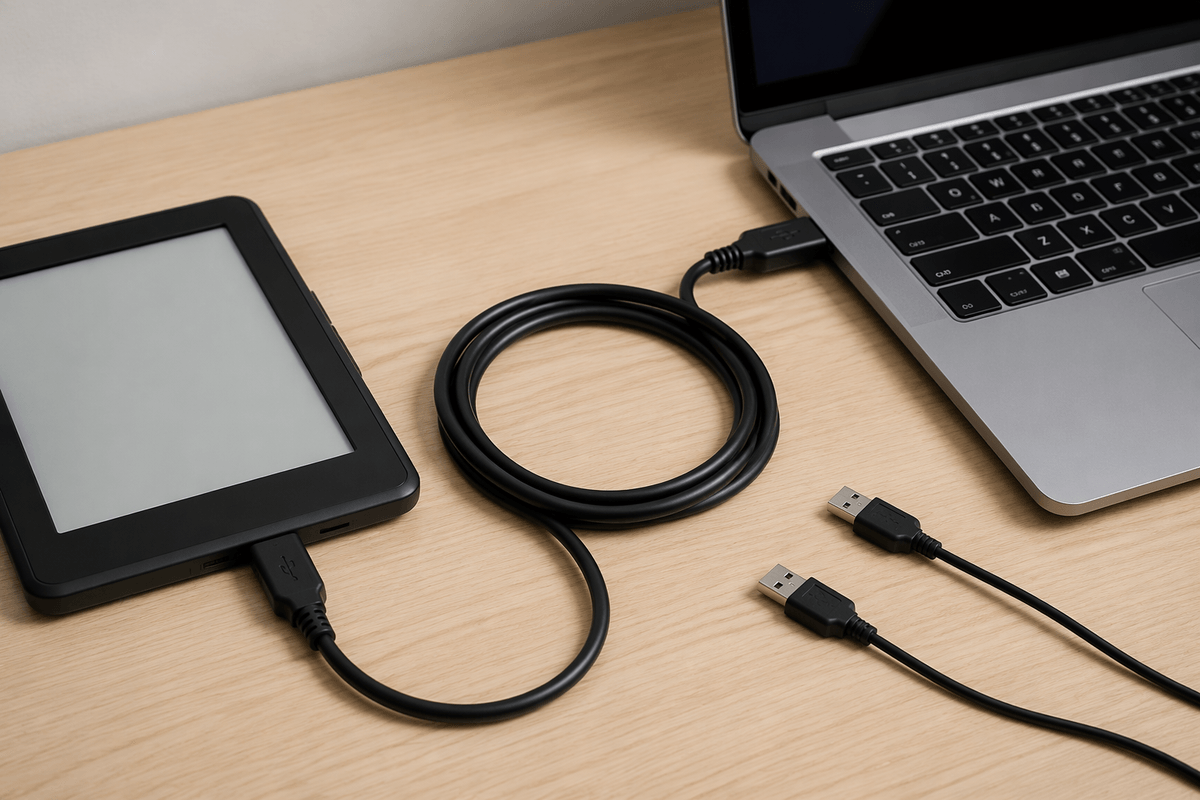
A reader that appears briefly, disconnects, or shows only a charging indicator often has a physical connection problem. Try a different USB cable first, preferably one you know can transfer data. Many inexpensive cables provide power but lack the wires needed for file access. Connect the reader directly to the computer instead of using a hub, dock, keyboard port, or adapter, then test another USB port. Desktop users should try a port on the back of the computer, which may provide a more stable connection.
Watch the reader’s screen after reconnecting. Some models offer choices such as charging, file transfer, USB storage, or a specific USB mode. Select the option that exposes the device’s storage, and leave the screen unlocked while Calibre checks for it. If the reader disconnects when the cable moves, stop testing that cable; repeated interruptions can corrupt a transfer. Older readers may also work more reliably with a USB 2.0 port than with certain newer ports or adapters. Once the computer consistently sees the reader with a known-good setup, test Calibre again before changing drivers or plugin settings.
Update Calibre and Handle Drivers Carefully
If the computer consistently sees the reader but Calibre still does not, check whether Calibre is current. Older releases may not support newer device firmware or changes in the operating system. Install the latest stable version from Calibre’s normal update process, then restart the program and reconnect the reader. Close other ebook managers first, since they may keep the device busy and prevent Calibre from opening it.
On Windows, also review the device in Device Manager if it appears with a warning symbol or disappears after connection. Let Windows search for an appropriate driver, or remove the problem entry and reconnect the reader so the system can detect it again. Do not download random driver packages from unofficial sites; they can introduce unrelated software or make diagnosis harder. macOS and Linux usually handle the basic USB driver automatically, so repeated driver installation is rarely useful there.
Update one component at a time and test after each change. A Calibre update can alter device support, while a driver change can create a new problem even when the original cable and connection were working.
Review Calibre’s Device and Plugin Settings
If the computer recognizes the reader but Calibre does not, open Calibre’s device settings and confirm that the expected device support is enabled. In Preferences, review the device interface or plugin list for an entry matching your reader’s brand or model. Make sure the plugin is active, then restart Calibre with the reader disconnected. Reconnect it after the program has fully opened. Some readers use a generic USB storage connection, while others require a dedicated device plugin, so the model name may not look exactly as expected.
Check whether a disabled plugin, custom configuration, or recently changed setting is interfering with detection. If you have modified plugin settings, restore that plugin’s defaults before making further changes. You can also temporarily disable unrelated third-party plugins, since an extension designed for another device or workflow may cause conflicts. If Calibre still ignores the reader, use its device-detection log or debug information when available, then record the reader model, firmware version, Calibre version, and operating system before moving to the e-reader’s own settings.
Know When the E-Reader Needs Its Own Fix
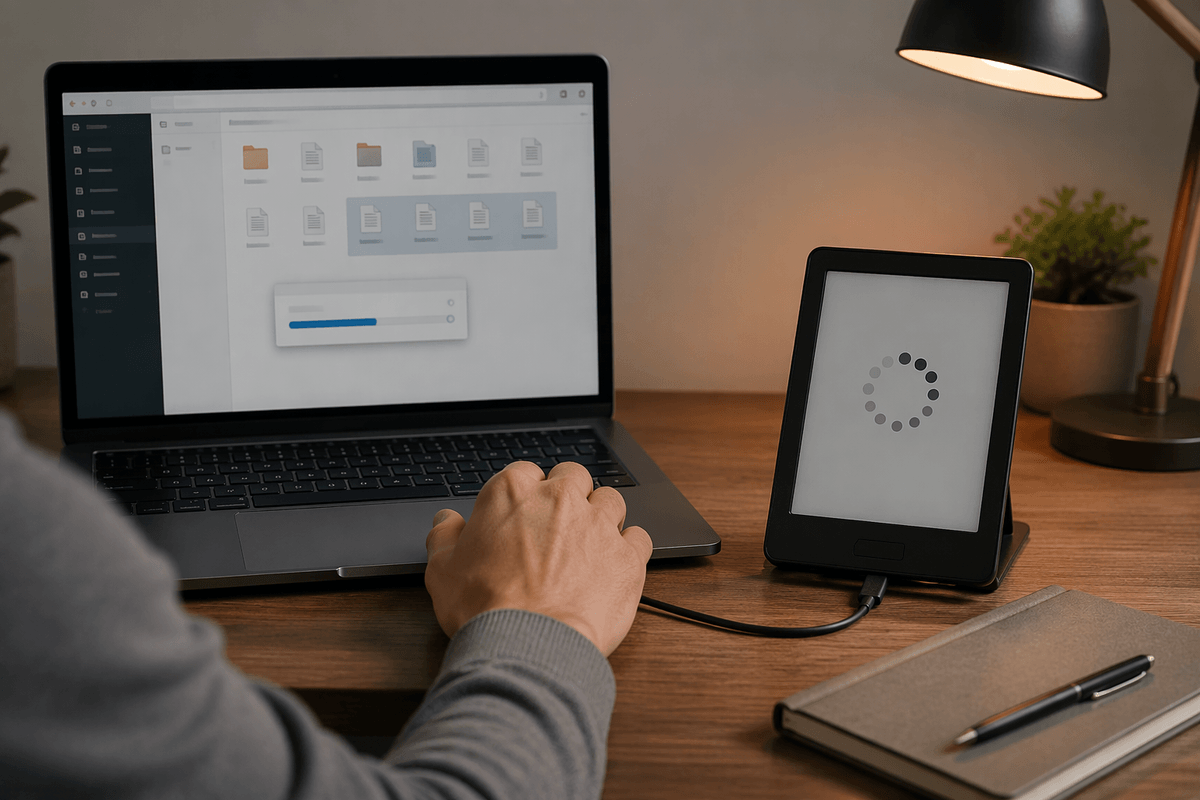
When the computer sees the reader and Calibre’s settings look correct, inspect the e-reader itself. Restart it fully rather than simply letting the screen sleep, then reconnect it while the device is unlocked. Check its storage status as well. Nearly full storage, a corrupted library index, or a pending system update can interfere with USB access even when charging still works. If the reader offers a USB connection setting, choose file transfer or USB storage instead of charge-only mode.
Install an official firmware update if one is available, but avoid interrupting the process or disconnecting the reader while it runs. If the device still appears inconsistently, remove recently added books or files only if the reader reports storage or library errors, and back up anything important first. A factory reset should be a last resort because it can erase books, settings, accounts, and annotations. Before using it, confirm that the problem follows the reader to another computer or cable. If it does, contact the manufacturer or consult its support documentation with the model, firmware version, and exact connection behavior.
Confirm the Fix and Prevent Repeat Problems
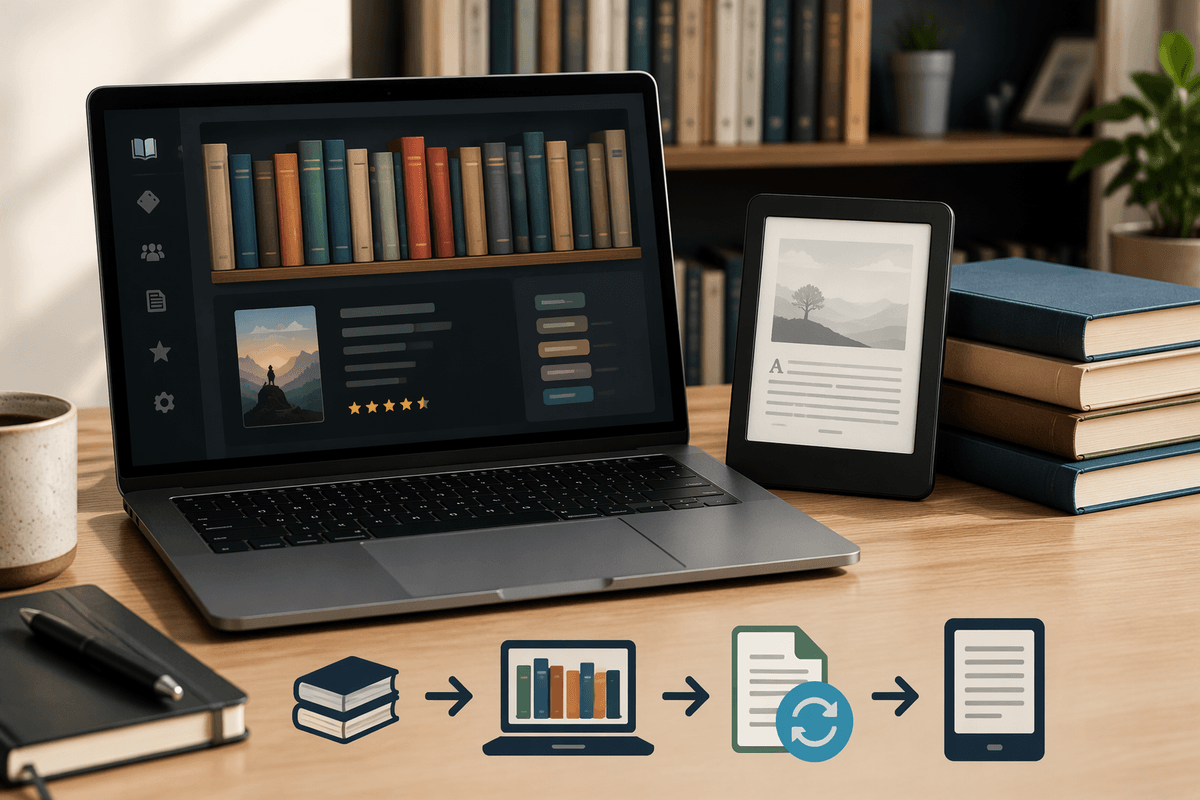
Once Calibre detects the reader, test the complete workflow rather than stopping at the device icon. Send a small, nonessential book to the reader, confirm that it appears in the library, then eject the device through the operating system before unplugging it. If the transfer succeeds and the reader opens the book normally, the connection is likely stable. Keep the working cable and USB port identified, especially if other cables have caused intermittent detection.
To reduce repeat problems, keep Calibre, the reader’s firmware, and the computer’s operating system reasonably current. Avoid connecting through unreliable hubs, disconnecting during transfers, or leaving multiple ebook programs open at once. If the problem returns, note what changed and repeat the checks in order: physical connection, operating-system detection, drivers, Calibre settings, and reader behavior. That record can save time and gives support staff useful details if the device ultimately needs repair.